The Names tab is found on many screens in the CIM GOLD Loan system. It contains name and address information about borrowers on the account. See the following example of this tab:
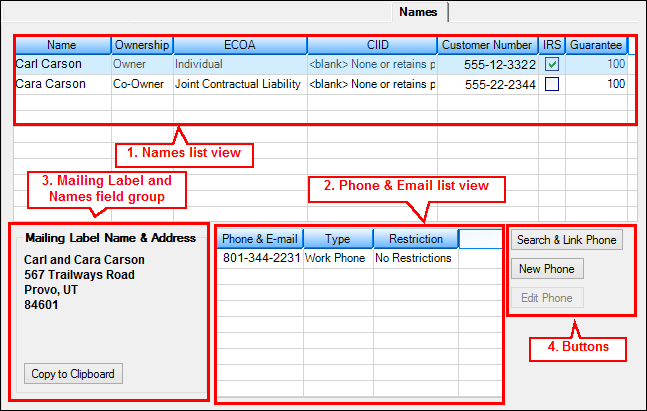
Names Tab
This tab contains:
1.Names list view
2.Phone and Email list view
3.Mailing Label Name & Address field group
4.Buttons, as described below.
1. Names list view |
This list view shows the borrowers' names, tax ID numbers, ownership, and what percentage of the loan they are obligated for. It contains the following columns:
|
||||||||||||||
2. Phone & Email list view |
This list view shows the phone number and/or e-mail address of the borrower selected in the Names list view, as well as whether there are restrictions for that number. File maintenance or new phone information can be added from this screen by using the appropriate buttons.
Note: Changes to e-mail information must be done through the Entity Maintenance screen for a person or business. |
||||||||||||||
3. Mailing Label Name & Address field group |
This field group displays the name and address information that is set up for the mailing label. Up to six lines are displayed.
If there is a mail restriction such as "Do Not Mail," it will be displayed. Restrictions are set up on the CIS > Entity Maintenance - Mailing Label screen for the account.
You can copy and paste the mailing information by completing the following steps:
1.Right-click in the Mailing Label Name & Address field group you want to copy, then select "Copy." 2.Go to where you want the mailing information; for example, a word-processing document. 3.Right-click, then select "Paste." |
Click the buttons on the bottom of this tab to make changes to the information, as described in the following table:
Button |
Description |
|---|---|
|
Click this button to search for a phone number to see if it has already been set up in CIS. If it has, you can link that number to the borrower. For example, if a phone number for one spouse is in CIS, to link it to the other spouse, click the name of the other spouse and click |
|
To add a new phone number, select a name in the list view and then click |
|
To edit an existing phone number, click on a phone number in the list view and click |

 .
.
