|
Using Batch Upload |
  

|
Navigation: »No topics above this level«
Using Batch Upload
|
Using Batch Upload |
|
Batch Upload allows you to upload MT103, FAIM305, Encompass, and ISO20022 formatted files to process multiple wires. Output indicates whether the file was processed or there are errors in the file. See the "Output" section below.
If you require the account name on the wire to match against your core database, set Require Name Match on Wire Upload under Admin > Wire Upload Verification.
You must work with FPS GOLD before you begin using this feature.
To upload multiple files:
1.Select “Batch Upload” from the EFT GOLD Menu.
2.Attach the MT103, FAIM305, Encompass, or ISO20022 format file by drag and drop.
or
| Click <Select File> and select a file to upload. |
3.If you select Submit Wires After Creation, the wires will automatically go into a submitted state.
4.Click <Upload and Create Wires>.

Output
After you click <Upload and Create Wires>, one of the following output messages will display.
If the batch uploads correctly, the output will look like the following example:
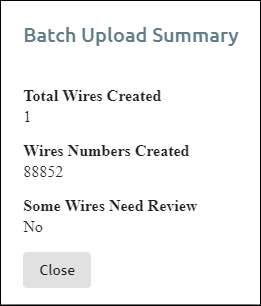
File Okay
If the batch uploads with errors, the output will look like the following example:

File with Errors