Downloading Event Records |
  

|
Navigation: Working with GOLD EventLetters >
Downloading Event Records |
|
The following steps explain how to download your event letters from GOLD EventLetters.
| 1. | From the Functions menu, select “Download Events.” You can also click the Download Events icon on the toolbar  . . |
The Download Event Files screen will open displaying all the event records created the previous night by the overnight processing. It will also display those event records that were created on previous days. The following example shows event records created by the host.
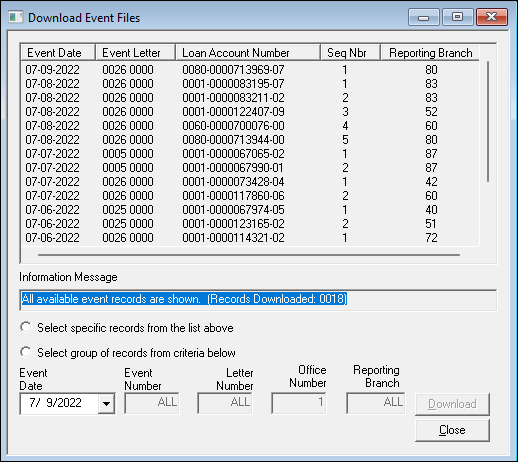
Download Event Files Screen
The Information Message field displays the progress of the download. It also displays when the download is completed and any errors that are found.
This field will also display the following message if the Block Events feature is set up on your computer: “Block-Events-Feature-Activated.” See Blocking Certain Events for more information concerning blocked events.
The default sort order is by the most recent date first, with ascending event letter and ascending account number within each event.
The records will remain on the host for seven calendar days.
Note: The information downloaded to this screen will change according to whether you are downloading deposit or loan events. See Setting Up GOLD EventLetters for more information.
| 2. | Once all the event records are shown, select one of the two radio buttons labeled Select specific records from the list above or Select group records from criteria below. |
| When selecting Select specific records from the list above, a single or group of records can be selected. |
| When selecting Select group of records from criteria below, a group of event records for a certain date can be selected. The Event Date field will accept only dates. Enter the event number or the word “ALL” in the Event Number field; enter the letter number or the word “ALL” in the Letter Number field; and enter the office number or the word “ALL” in the Office Number field or Reporting Branch field (if applicable). |
| 3. | Click <Download> to begin downloading the event letter data files from the host. |
| A message box will open if you have previously downloaded the same event and letter for that date. Press <Yes> if you want to overwrite the file event or <No> if you do not want to overwrite it. |
| Note: The message box will open only if you have previously downloaded the same event and letter for a given date on this PC. |
Once the event records are downloaded, they are saved as a data source file.
Use these data source files to include as merge fields in Microsoft® Word, as explained in the Tying Data Source Files section.