File Services Plus |
  

|
Navigation: Working with GOLD EventLetters > Printing and Saving Event Letters >
File Services Plus |
|
If you use File Services Plus (GOLDVault), you can also save event letters so they can be accessed on your customers or on their accounts in CIM GOLD. Some events are not account specific (for example,File Services Plus address changes or safe deposit box notices), so they will be attached to the owner and not an account. You must also install PDFill (http://www.pdfill.com/) and save them as PDF files in File Services Plus. Using subcategory "All" and File Type "Event Letter" will allow you to automatically upload your event letters. Note: You must type "All" and "Event Letters" in mixed case.
WARNING: Do not send letters to File Services Plus until you have finalized the letters. If you send them multiple times, they will be attached multiple times.
In addition, after you print your letters, you can save them to File Services Plus if your institution uses this product.
To manually send files to File Services Plus:
1.Select "Print Event Letters" from the Functions menu in GOLD EventLetters. You can also click the Print Event Letters icon found on the toolbar. 
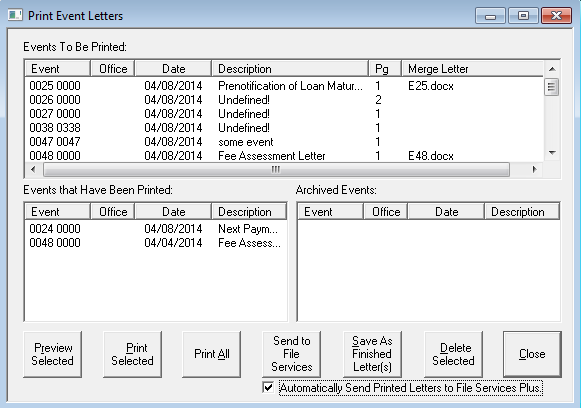
Print Event Letters Screen
2.Select the event letter(s) you want sent to File Services Plus.
3.Click the <Send to File Services> button.
The files will be sent to File Services Plus and stored there. You can then use and manage them as any other file on File Services Plus.
An option is also available that allows you to default sending letters to File Services Plus when letters are printed.
To automatically send files to File Services Plus:
1.Select "Event Letter Options" from the Options menu in GOLD EventLetters. The following dialog will be displayed.
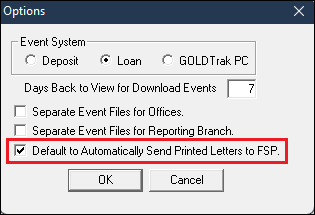
Options Dialog
2.Mark the Default to Automatically Send Printed Letters to FSP field. Immediately after you print the letters, they will be sent for you to File Services Plus.
3.You can change this at any time by unchecking the Automatically Send Printed Letters to File Services Plus box on the Print Event Letters screen (see the Print Event Letters screen above). For example, you may want to turn it off when testing a new event letter.