Getting Started |
  

|
Navigation: Dashboard > Real-Time Alerts >
Getting Started |
|
Before you can use Real-Time Alerts, a user at your institution with Security Administrator authority must add one or more users to the appropriate system profiles in CIM GOLD Security Setup.
Adding Authorized Users to System Profiles
CoreView GOLD users must belong to security profiles AU_Alerts_CHG and AU_Alerts_INQ to have permission to view or modify alert subscription. AU_ALERTS_INQ will be a member of AU_Employee_Security_INQ, so all users who are members of AU_ALERTS_INQ will automatically have privileges conferred by AU_Employee_Security_INQ, which include the name and email address of all employees at your institution.
If AU_Alerts_CHG and AU_Alerts_INQ are not listed in security, please contact FPS GOLD Client Services and ask them to contact FPS GOLD Dev Ops to add the security to the institution. Once security is added, users will need to subscribe to the security bit in order to view or modify alert subscriptions.
These are the Real-Time Alerts system profiles, and security setup can be found at: Security > Setup > Employee tab, System Profile Membership.
AU_Alerts_CHG - Coreview Alerts Change
AU_Alerts_INQ - CoreView Alerts View
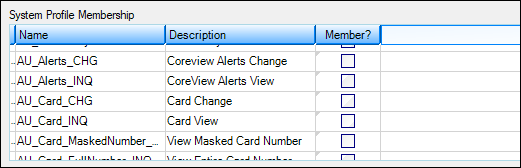
CIM GOLD Security Setup Screen, System Profile Tab
Note: These profiles will change in the future as more specific CoreView GOLD security profiles are added.
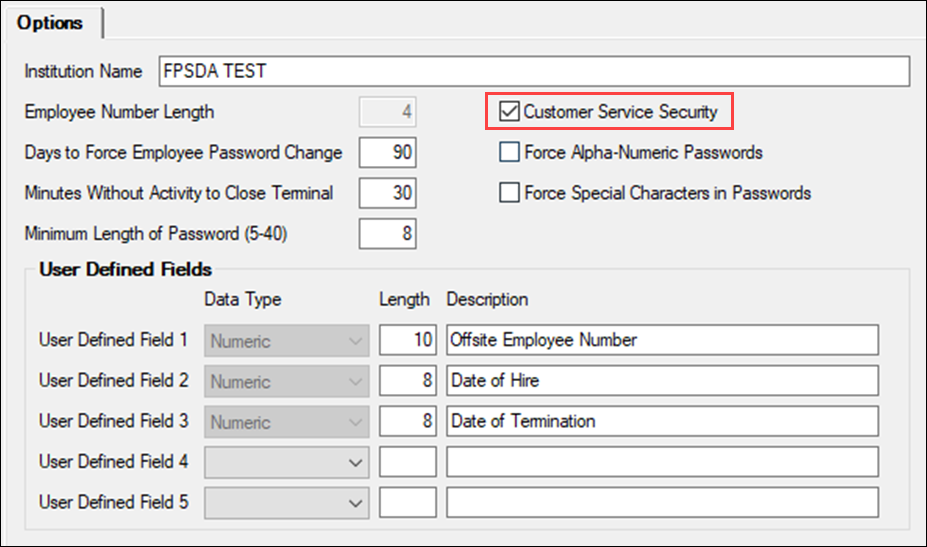
Customer Service Security
Skip this step if Customer Service Security is currently unchecked on the CIM GOLD > Security > Company Options > Options tab.
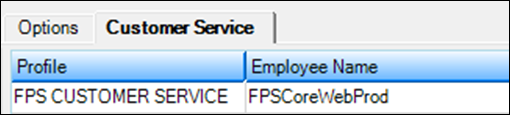
If Customer Service Security is already checked, the security administrator must add the Profile “FPS Customer Service” to the “FPSCoreWebProd” Employee Name on the Customer Service tab of CIM GOLD > Security > Company Options.
If an FPS GOLD client has Customer Service Security set, the security administrator must add the Profile “FPS Customer Service” to the FPSCoreWebProd user. See the example below.
Adding Alert Recipients
After a user has been added to the system profiles, that user can be added to the Email field to receive alerts.
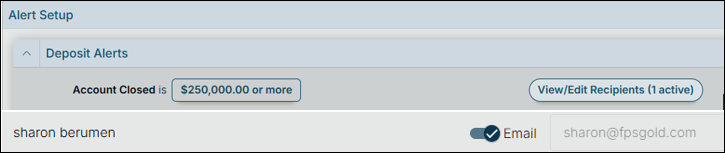
By default, email addresses are pulled from Employee Setup (Security > Setup > Employee in CIM GOLD). See the example below.
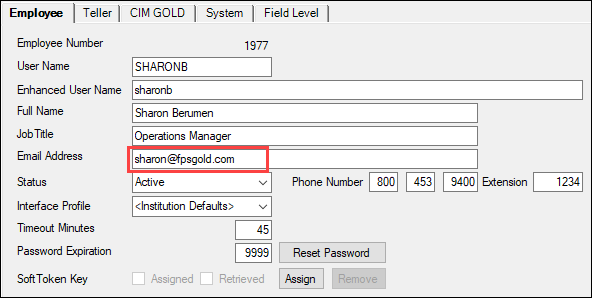
You can enter a different email address in CoreView GOLD, but the new email address won't be stored and will revert to the email address found in Employee Setup. To change an email address permanently, change it in Security > Setup> Employee in CIM GOLD.
Activating Alert Subscriptions
After authorized users have been added, they must be activated to receive alerts. This can be done in one of two ways:
| • | Individual users can activate their own alert subscriptions by clicking the <Email> button next to each alert rule. |
| • | If your institution prefers, one administrator can activate alert subscriptions for all other users at the institution. |
To manage alert subscriptions for other users:
1.Click <View/Edit Recipients>.

2.In the dialog box that opens, click on the button next to the email address you want to add to the Email subscription list.
Changing the Rule Values
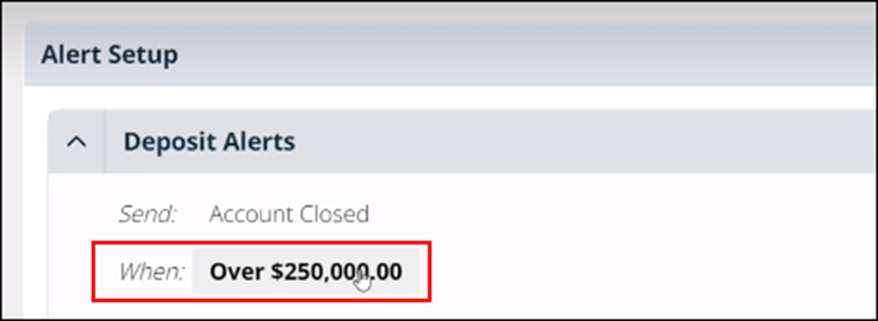
Users with appropriate security can change the values in the rules and add addresses to the Email list. Any user with appropriate security can change the values that trigger an alert.
WARNING: When any user changes a value, it will change for the entire institution. This means whatever is in the When field notifies everyone that is set up to receive the alert. If you choose to give security to each person and allow users to set up their own alerts, if they change the “When” amount on the alert it will change the amount for everyone assigned to receive that particular alert.
To change an alert's value:
1.Click on the value at the right of the alert name.
The Set Up Alert Triggers dialog box opens. See the example below.
2.In the Set Up Alert Triggers dialog box, enter a new value. See the example below.
3.Click <Save and Close>.
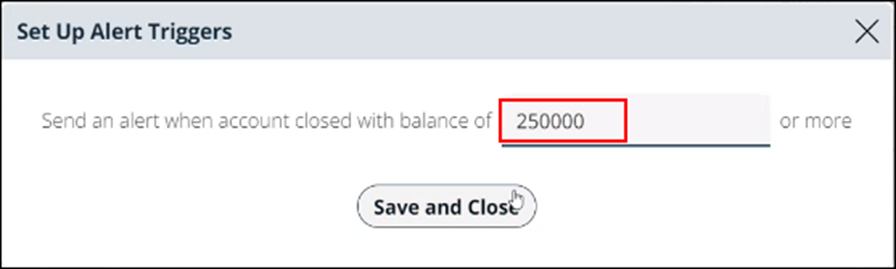
The new value displays on the Alert Setup screen.