|
Creating Reports |
  

|
Navigation: Using Reports >
Creating Reports
|
Creating Reports |
|
To create a new report:
1.Click <+ Generate New Report>.
2.Select parameters and enter the dates and amounts for your report. Required selections show an asterisk (*) next to the field label.
3.To use the search feature, enter text data into the field. The Transaction Account, Instructing Agent Sender Reference, Instructing Agent Identifier, Instructed Agent Number, Debtor Name, Debtor Account Number, Creditor Name, and Creditor Account Number will be searched for matches.
4.Click Only Wires With OFAC Matches to show only those wires with suspect names.
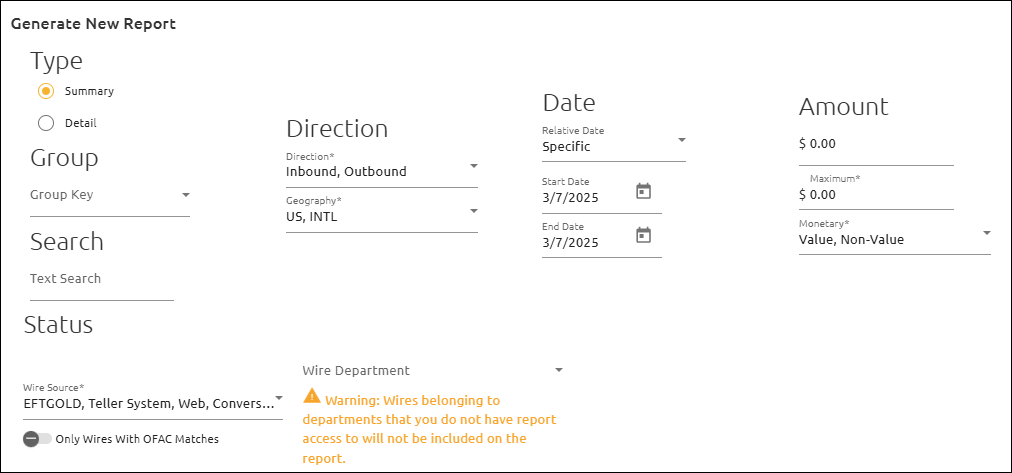
5.Mark the check boxes (shown below) to select what shows on the report. You can select as many as you want.
6.Click the drop-down arrow on the Wire Source field and select the source(s) of wires to include in the report.
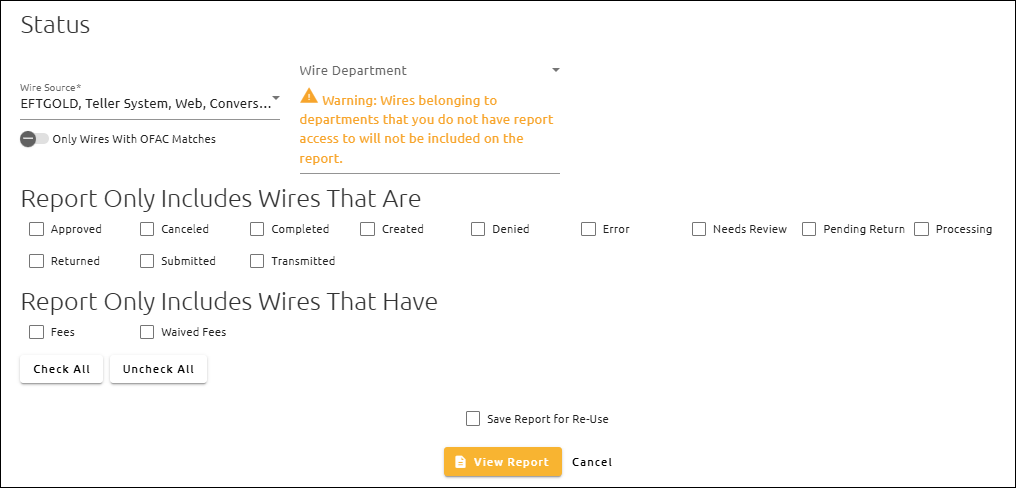
7.Click the drop-down arrow on the Wire Department field and select the department(s) of wires to include in the report. You can select departments you don’t have security to report on if other users with security to that department will use the same report. When the report is run, it will only display the wires each user has permission to report on.
8.Click <View Report> to run and display the reports, or click <Cancel>.