|
Custom Rules |
  

|
Navigation: Administrative Options >
Custom Rules
|
Custom Rules |
|
Rule List
You can view existing rules in the Rule List below the Rule Builder. This list is sorted by priority; click on any of the column headers to change the sort.

Rule Builder
Create or edit rules using the Rule Builder.
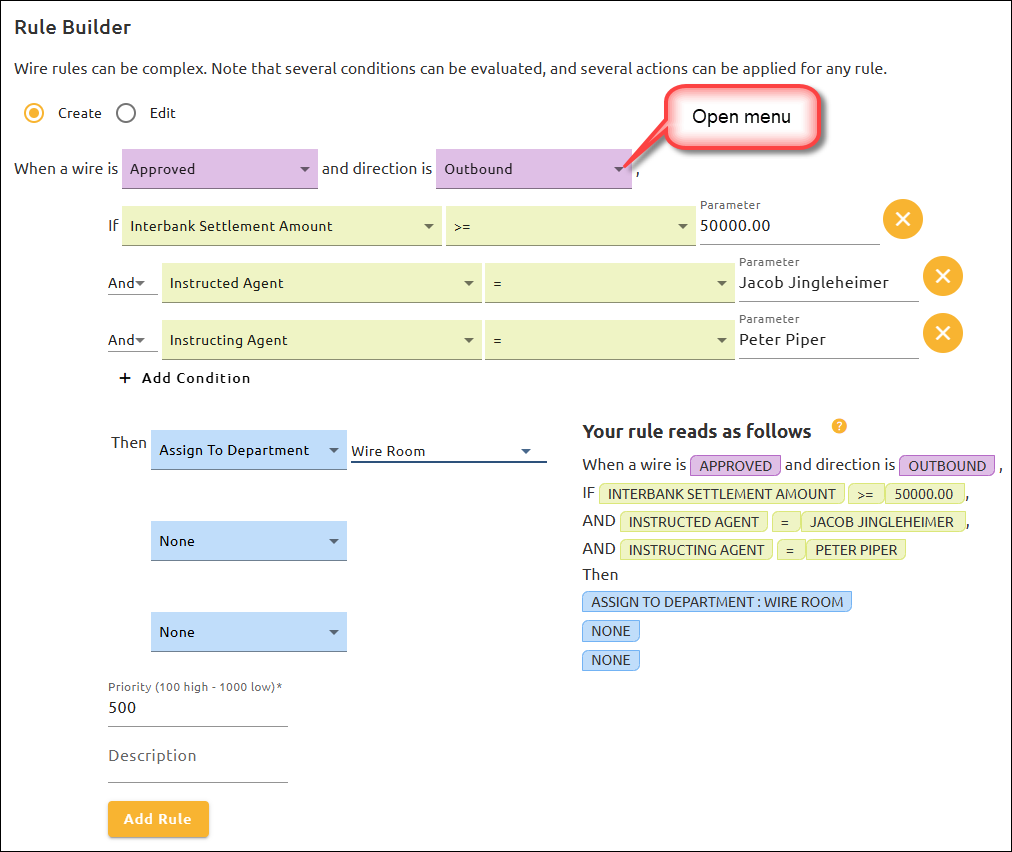
To create a new rule:
1.Click the Create radio button.
2.Click the menu arrow and select an option from each menu.
3.Enter the value(s) in the Parameter field(s).
4.Enter a priority number in the Priority field. The priority determines which rules take precedence when multiple rules are processed on a wire. The lowest number is the highest priority.
5.Enter a Description (optional).
6.Click <Add Rule> to save and add this rule to the list.
Note: When first creating a rule, the enable/disable option is not visible—however, the rule is enabled by default. To show the enable/disable option, the rule needs to be edited by clicking on the  button; then the enable/disable option will appear next to <Edit Rule>. (See step 7 below for more details.)
To edit an existing rule:
1.Click the Edit radio button.
2.Enter the Rule ID number of the rule you want to change.
3.Click the menu arrow and if needed, change the option(s) from each menu.
4.Change the priority number (if needed) in the Priority field. The priority determines which rules take precedence when multiple rules are processed on a wire. The lowest number is the highest priority.
5.Change the value(s) in the Parameter field(s) (if needed).
6.If needed, change/update the Description (optional).
7.Determine whether the rule should be enabled or disabled. The default is enabled  . If you want to disable the rule, click the <Enabled> button.
8.Click <Edit Rule> to save the changes made to this rule.
How Rules Are Evaluated
Rules that combine both "And" and "Or" are evaluated in a specific order. This is similar to the order of math operations. When "And" and "Or" operations are present in a rule, "And" groups will be evaluated first, and then the "Or" operations will be applied.
Example 1: Condition1 Or Condition2 And Condition3: In this example, if condition 1 is true Or conditions 2 And 3 are both true, then the rule will take effect.
Example 2: Condition1 And Condition2 Or Condition3 And Condition4: In this example, if conditions 1 And 2 are both true Or conditions 3 And 4 are both true, then the rule will take effect.
Example 3: Condition1 Or Condition2 And Condition3 Or Condition4: In this example, if condition 1 is true, Or conditions 2 And 3 are both true, Or condition 4 is true, then the rule will take effect.
Example 4: Condition1 And Condition2 Or Condition3 And Condition4 Or Condition5: In this example, if conditions 1 And 2 are both true Or conditions 3 And 4 are both true Or condition 5 is true, then the rule will take effect.