|
Handling Inbound Wires |
  

|
Navigation: Using the Dashboard >
Handling Inbound Wires
|
Handling Inbound Wires |
|
EFT GOLD has several options for handling inbound wires.
To handle inbound wires:
1.Click on the Inbound tab at the top of the Dashboard.
2.Click the drop-down arrow next to Filter Departments if you want to filter the list of wires to only show wires for one or more specific departments.
Selecting all departments or selecting no departments in this field will show all wires, including wires that have been previously retired. You will only see Inbound wires for the departments you have security to view. Inbound wires will default to the Default Department set up in Admin > Options > Departments/Countries. A user with security can change the department on an Inbound Wire.
3.Click the arrow next to Items per page and select the number of wires you want to view on one page. This number will stay at the last setting but can be changed as needed. You can use the right and left arrows (< >) to jump to the next or previous page.
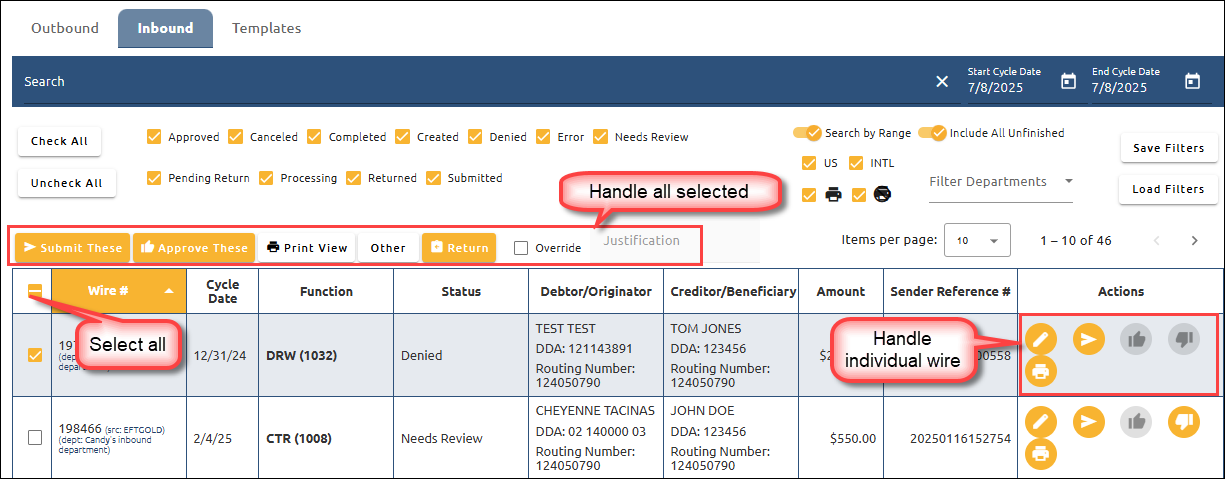
4.Check the box at the left of the inbound wire(s) that you would like to handle.
or
Check the box at the top of the column to check all the wires in the list.
5.Select one of the options above the list or in the Actions column. See the example below.
Button/Field |
Explanation |
|
Click to submit the selected wires.
Click to submit the wire on that row. |
|
Click to approve the selected wires.
Click to approve the wire on that row. |
|
1.Click to open list of print options: List, Detail, Activity Details, Wire Snapshot, Legal Acceptance Document, OFAC Results, or Sign Document. 2.Select an option from the drop-down list to print it. |
|
1.Click to open a list of less-used options: Deny These, Approve These w/o Fee, Cancel These, Complete Wire Manually, Send Investigation Request (Inbound only), Respond to Investigation Request (Inbound only), or Skip OFAC for Wire. 2.Select an option from the drop-down list to complete the action. |
|
Click this icon to edit this wire (only available on wires in a “Created,” "Needs Review," or “Denied” state).
When editing a wire, you can change it from a Domestic Wire to a Foreign Wire. To do this, select a country other than United States. This action will mark the wire as International so that the wire is assessed the appropriate wire fee for Foreign Inbound Wires. |
|
This wire is on executive hold. If you have executive-level security, you can click this icon to release the hold. |
|
1.Click to return the selected wire(s). 2.Then in the Return box that appears, select the Return Reason type. Enter any additional information (if needed), and click Return Wire. |
|
1.Check this box to override conditions that stopped the wire(s) from being approved. 2.Then click |