|
Using the Dashboard |
  

|
Navigation: »No topics above this level«
Using the Dashboard
|
Using the Dashboard |
|
The default function in EFT GOLD is the Dashboard. From here you can
•create new Outbound Wires, Drawdown Requests, and Templates;
•review and process Inbound and Outbound Wires;
•review and update Templates;
•handle Drawdown Requests.
To return to the Dashboard at any time:
1.Click the EFT GOLD logo. 
The Dashboard has three viewing areas: Outbound, Inbound, and Templates. The wires displayed are filtered based on the check boxes selected at the top of the view. Your security controls which menu items you can select and which departments you can see. For more information on setting up security, see the Setup section earlier in this user's guide.
To begin using the Dashboard, select one of the tabs at the top and the number of items to display per page. See the following example.
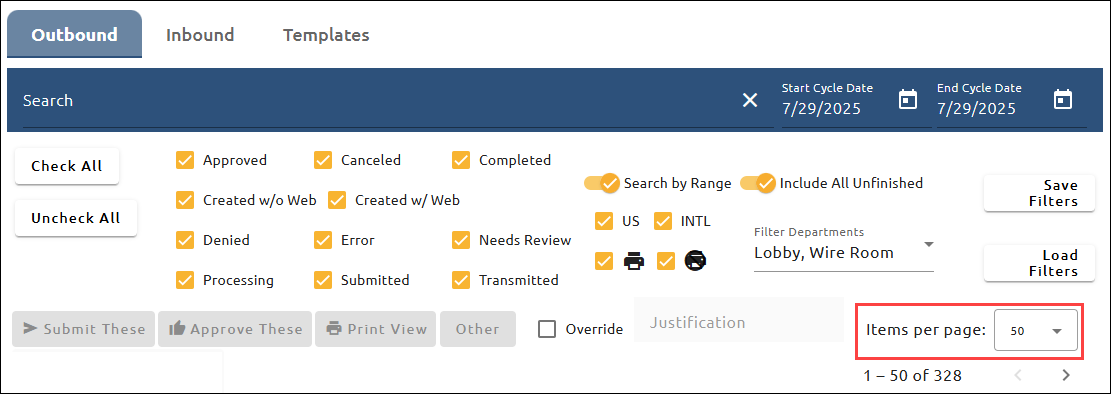
Then you can filter the results further using the other fields at the top of the Dashboard. In the following example, the numbers correspond to the numbers in the table below.

The table below explains the numbered items in the example above.
Number |
Button or Field |
How to Use It |
1 |
<Check All> <Uncheck All> |
Click these buttons to check or uncheck all the filters labeled "2" in the example above. You can also select individual filters. |
2 |
Filters |
Check the options that describe the kinds of wires you want to view. For explanations of all of these options, see "Wire States in EFT GOLD" below. |
3 |
Search by Range |
See "Filtering with Search and Dates" below. |
4 |
Include All Unfinished |
Slide this bar to the right to include all wires that have been started but not completed, returned, or canceled regardless of the date of the wire. Move the bar to the left to remove them from your view. |
5 |
US, INTL, Print, Don't Print |
You must select or deselect these filters separately. You can't use <Check All> or <Uncheck All>. |
6 |
<Save Filters> <Load Filters> |
Click <Save Filters> if you want EFT GOLD to remember which filters you had checked. Click <Load Filters> if you want to go back to your saved filter list. |
7 |
Filter Departments |
Click this drop-down field to filter the list of wires to only show wires for one or more specific departments. Selecting all departments or selecting no departments in this field will show all wires, including wires that have been previously retired.
You will only see wires for the departments you have security to view. |
Filtering with Search and Dates
You can also filter what shows on the dashboard using the search feature and a date range.
To search for a wire:
1.Click the word “Search.”
2.Begin typing.
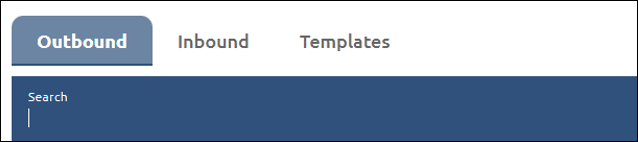
The search will immediately filter the list in that view. If "Wire Count: 0" shows at the bottom of the view, no matches were found.
You can search by a range of dates or by a single date. If you do not select Search by Range, you can only enter one date. Once the slider is set, it is persistent, but it can be changed.
To search for wires in a date range:
1.Move the Search by Range slider button to the right.
2.Enter the start date and end date for the range you want to search.
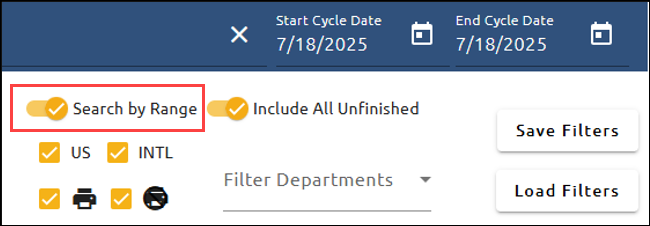
Enter two dates if you select Search by Range.
At the bottom of each view, the total number and total dollar amount of wires displays.

Wire States in EFT GOLD
The following table explains each wire state possible in EFT GOLD and how to use it.
Wire State |
Definition |
Actions Available |
Approved |
This wire has been approved and is waiting to be processed and transmitted. If there is a wait time or the wire needs an Executive release, the wire will not be transmitted until each condition is met. |
Deny These, Cancel These, PrintWire Snapshot, Legal Acceptance Document, OFAC Results, Sign Document, Complete Wire Manually, Send Investigation Request (Inbound only), Respond to Investigation Request (Inbound only), Skip OFAC for Wire |
Canceled |
This wire has been canceled. |
Print List, Details, Activity Details, Wire Snapshot, Legal Acceptance Document, OFAC Results, Sign Document. |
Completed |
This wire was successfully transmitted to and accepted by the Fed with no errors. |
Print List, Details, Activity Details, Wire Snapshot, Legal Acceptance Document, OFAC Results, Sign Document, Send Investigation Request (Inbound only), Respond to Investigation Request (Inbound only) |
Created |
This wire has been created and can still be edited by clicking the edit (Pencil) icon. |
Edit, Submit, Deny These, Approve These w/o Fee, Cancel These, Send Investigation Request (Inbound only), Respond to Investigation Request (Inbound only), Print List, Detail, Activity Details, Wire Snapshot, Legal Acceptance Document, OFAC Results, Sign Document, Complete Wire Manually, Skip OFAC for Wire |
Denied |
This wire has been denied but can still be edited, submitted, or canceled. |
Edit, Submit, Cancel These, Approve These w/o Fee, Complete Wire Manually, Skip OFAC for Wire, Send Investigation Request (Inbound only), Respond to Investigation Request (Inbound only) |
Error |
This wire has one or more errors and was rejected. This state requires help from FPS GOLD. |
Contact FPS GOLD. |
Needs Review |
This wire needs to be reviewed because one or more conditions are preventing it from processing, including but not limited to: Hold Codes, Transaction Conditions, OFAC match, Custom Rules, etc.
If the wire is rejected by the FRB, you can get more information on these errors. See Viewing FRB Messages. |
Edit, Submit, Deny, Cancel These, Complete Wire Manually, Skip OFAC for Wire, Override, Send Investigation Request (Inbound only), Respond to Investigation Request (Inbound only) |
Processing |
The wire is processing and is waiting to be transmitted to the FRB. |
None |
Submitted |
This wire has been submitted waiting for approval(s). |
Approve, Approve These w/o Fee, Deny These, Cancel These, Complete Wire Manually, Skip OFAC for Wire |
Transmitted |
The wire is being transmitted to the FRB and waiting to be completed. |
None |