Subscriptions tab |
  

|
Navigation: GOLDDeploy Management Screen >
Subscriptions tab |
|
If you have appropriate security, you can add subscriptions, add schedules to subscriptions, and delete subscriptions for products to be installed on target machines. A subscription links an FPS GOLD product to tags. Tags provide information about a target machine's location or role. For example, a beta test machine could be assigned the tag "Beta."
Use the filters at the top of the screen to search for specific subscriptions and display their details in the list view. Right-click on the screen to open a pop-up menu.
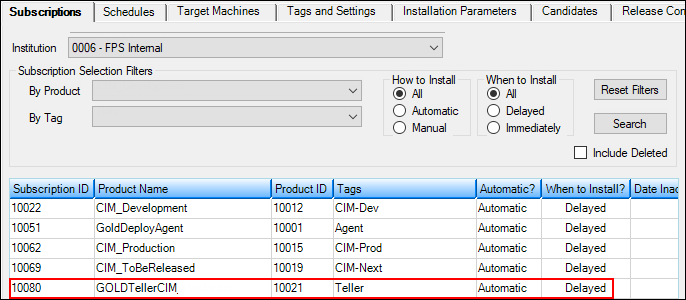
When a product is released to the system, the system automatically finds all subscriptions to the product and schedules them for release according to subscription instructions. Once a package is available for release, your bank may want to add a new subscription for the release package. However, adding a subscription will not automatically schedule packages. See the section below for information on how to add a schedule.
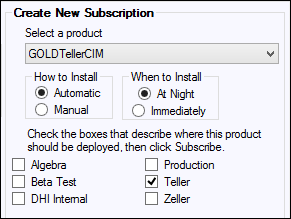
1.In the Create New Subscription field group at the right of the screen, select a product from the drop-down list.
2.Select a radio button for How to Install and When to Install.
3.Check one or more of the boxes that describe where this product should be deployed.
4.Click <Subscribe>.
See the example below.
If the subscription succeeded, you will see a confirmation message.
5.Click <OK> to close the message.
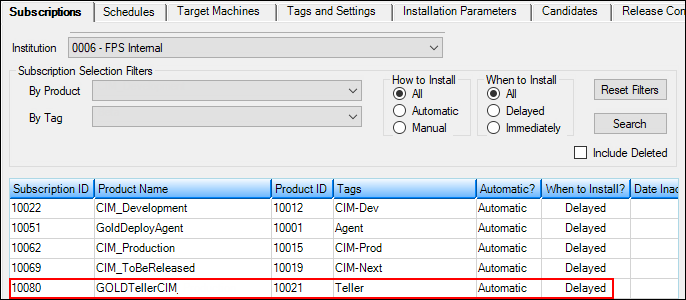
The new subscription is added to the list view, as shown below.
After a subscription has been added, you can schedule the release.
To add schedules to a subscription:
You can add a schedule to a subscription on this tab. To change or delete a subscription, use the Schedules tab.
1.In the list view, select the subscription that you want to schedule.
2.Change any of the fields in the Update Subscription field group at the right of the screen.
3.Right-click on an item in the list view. A pop-up menu opens. See the example below.
4.Click "Add Schedules for this Subscription."

You can delete one or more subscriptions at a time.
When you click <Delete>, the selected items are deleted immediately. There is no confirmation dialog. However, you can add a subscription again if you accidentally delete it.
To delete subscriptions:
1.Select one or more subscriptions in the list view.
2.Click <Delete>.
Subscription Selection Filters field group
Create New Subscription / Update Subscription field group