Adding Attachments |
  

|
Navigation: »No topics above this level«
Adding Attachments |
|
When you create or modify a ticket, you can attach files if needed. You can attach multiple files to a ticket, but only one file can be uploaded at a time. Because you're signed onto the FPS GOLD network, attaching files is secure. Files can be in any format (such as Excel, PDF, or CSV).
There is a 10 Mb upload limit per file. If you need to upload a larger file, contact FPS GOLD for alternate methods.
To attach a file:
1.Click <Attachments> to open the Attachments options.

2.From the options shown below, select the way you want to attach the file. The options are explained in the table below.
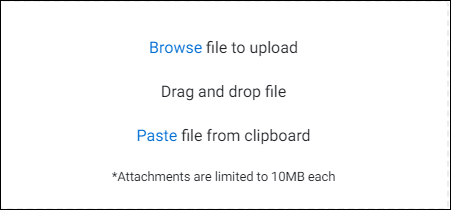
Attach File Options
Option |
How to Use It |
|---|---|
Browse file to upload |
1.Click on <Browse> and select the file from the File Explorer. 2.In the dialog box that opens, select "Add Custom Message" if you want to add a comment. 3.Click <Attach File>. |
Drag and drop file |
Open File Explorer, then drag the file from its saved location onto the options box. |
Paste file from clipboard |
Save the file to the Windows Clipboard, then click <Paste>. |