Searching Help Desk |
  

|
Navigation: »No topics above this level«
Searching Help Desk |
|
You can search within Help Desk using various search filters.
To search Help Desk:
1.Click <Search> at the top right of the screen.
2.Enter information you want to find in the field at the top of the screen.
All tickets containing the search information display on the screen.
If too many results are returned, you can narrow the search by applying filters.
.
3.Click the  icon at the far right of the search field to open the Search Filters dialog box. See the example below.
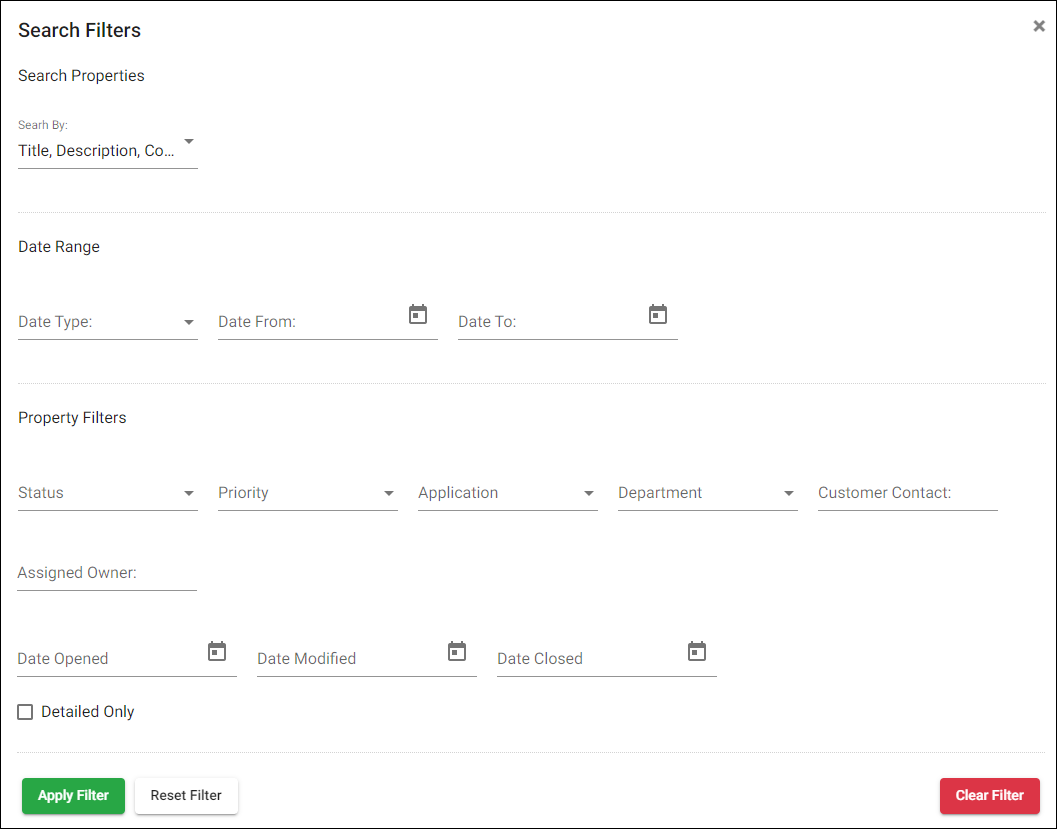
Use the fields on the Search Filters dialog box to limit your search if your original search returns too many results. The field groups are Search Properties, Date Range, and Property Filters.
To narrow your search by Search Properties:
1.Open the Search By drop-down list.
2.Choose "Select All" or "Unselect All."
•"Select All" selects all the options on the drop-down list.
•"Unselect All" clears all fields in the list and lets you choose any combination of the options.
To search within a Date Range:
1.Select an option from the Date Type drop-down list:
• Select “None” if you don't want to search within specific dates.
• Select "Date Created" to search within a range of ticket creation dates.
• Select "Date Last Modified" to search within a range of dates for the most recent ticket change.
• Select "Date Closed" to search within a range of ticket closing dates.
2.To specify the date range, select a start date (Date From) and an end date (Date To).
To narrow your search with the Property Filters:
The Property Filters with drop-down menus let you choose "Select All" or "Unselect All" search options. "Unselect All" lets you choose specific fields you want in your search, giving you a wide variety of search options. Status, Priority, Application, and Department fields all have drop-down menus.
1.To begin your search, enter the appropriate information in the Properly Filter fields you want to use.
2.To change the information in a field during your search, click <Reset Filter> and enter new information.
3.The Customer Contact can be removed without selecting the <Reset Filter> button, which clears all search fields on the screen.
4.If FPS GOLD has marked certain chats as "Detailed," you can search within those detailed chats by checking the Detailed Only field.
5.When you finish entering information in your selected filter fields, click <Apply Filter> to see your results on the Search screen.
6.To export search results to Excel, click <Export> and then <Generate>.
If the search does not yield the results you want, you can start over by clicking the <Clear Filter> button on the Search screen and start a new search.