Setting Up Security |
  

|
Navigation: App. F - G/L Transaction Entry in CIM GOLD >
Setting Up Security |
|
Setting up security to use the General Ledger Transaction Entry screen requires three steps:
1.Each institution will need to use the Subscribe to Mini-Applications screen to enable the Transaction Entry screen to be shown in the CIM GOLD tree. This is only done once. The Subscribe to Mini-Applications screen is accessed under Security in the left tree in CIM GOLD. If you have security clearance, check the box next to Transaction Entry, as shown below:
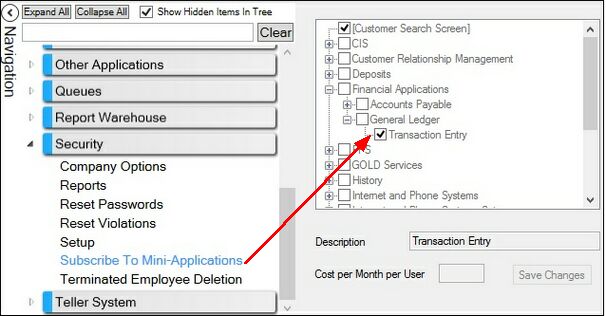
Security > Subscribe to Mini-Applications Screen in CIM GOLD
| 2. | Next, CIM GOLD security needs to be added to each employee or profile that will be using the Transaction Entry screen. This allows the user to access the screen from the CIM GOLD navigation tree. Use the Security > Setup screen, CIM GOLD tab to set up individual users. You can give them inquiry access or file maintenance access to this screen, as shown below: |
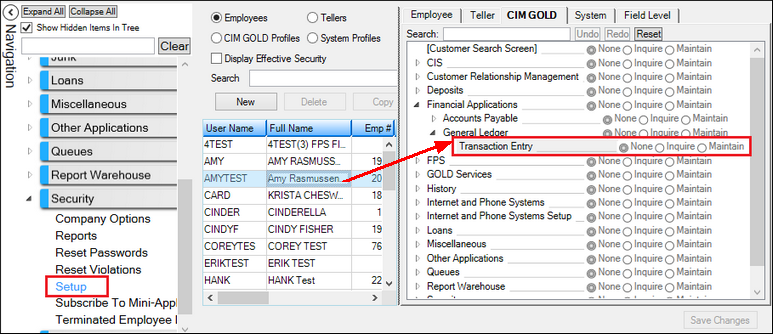
Security > Setup Screen, CIM GOLD Tab
| 3. | Each user must still have security to the General Ledger application under the Security > Setup screen, System tab. The user will be able to backdate or post transactions according to their System security setup. See the example below: |
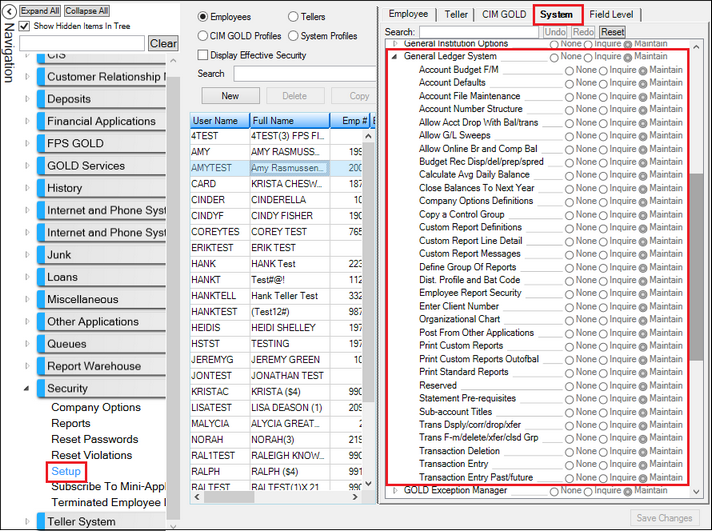
Security > Setup Screen, System Tab