|
Alerts |
  

|
Navigation: Administrative Options >
Alerts
|
Alerts |
|
The alerts are set up for each user in the wire system and are sorted by the Contact column. Click on any of the column headers to change the sort. There is also a search function available.
You can delete alerts, edit them, and add new contacts to the Alerts list.
To delete the alert for a user:
1.Click the <Delete> icon in the Actions column.
To edit an alert for a user:
1.Click the <Edit> button in the Actions column.

All of the alert fields open so you can edit the alert, as shown below.

2.Change the Contact, Description, or Departments, and place a check mark in the box for any trigger you want to use for this alert.
3.Click <Save>.
or
Click <Cancel> to discard the changes and exit the editing mode.
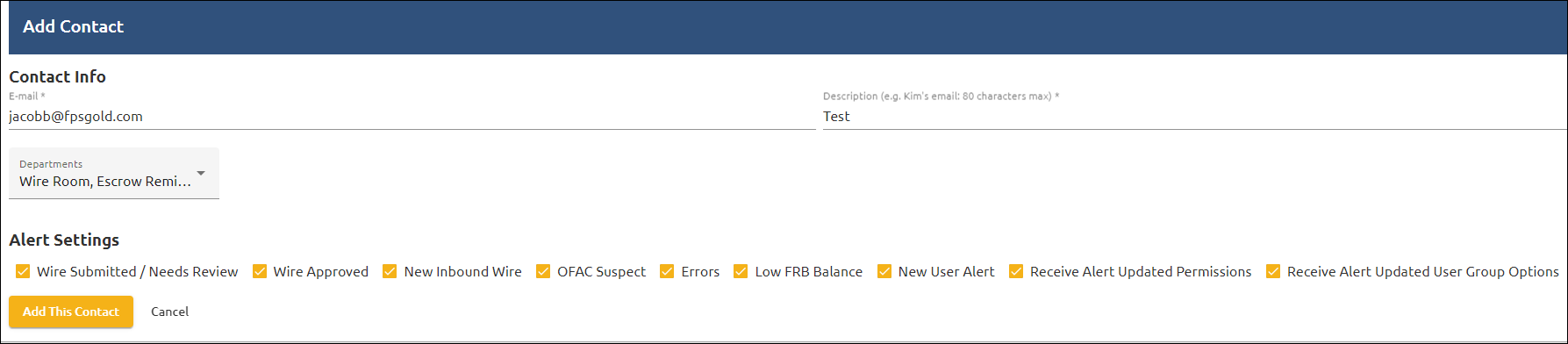
To add a new contact to the Alerts list:
1.Click <+ Add a New Contact>.
2.Enter the email address for the alert and a description of the alert.
3.Select all departments this alert will apply to.
4.Under the Alert Settings section, check all the events for which an alert will be sent.
5.Click <Add This Contact> to add this contact to the Contact List.
or
Click <Cancel> to discard the changes and return to the Contact List.