|
Handling Outbound Wires |
  

|
Navigation: Getting Started >
Handling Outbound Wires
|
Handling Outbound Wires |
|
EFT GOLD has several options for handling outbound wires.
To handle outbound wires:
1.Click on the "Outbound" tab at the top of the Dashboard.
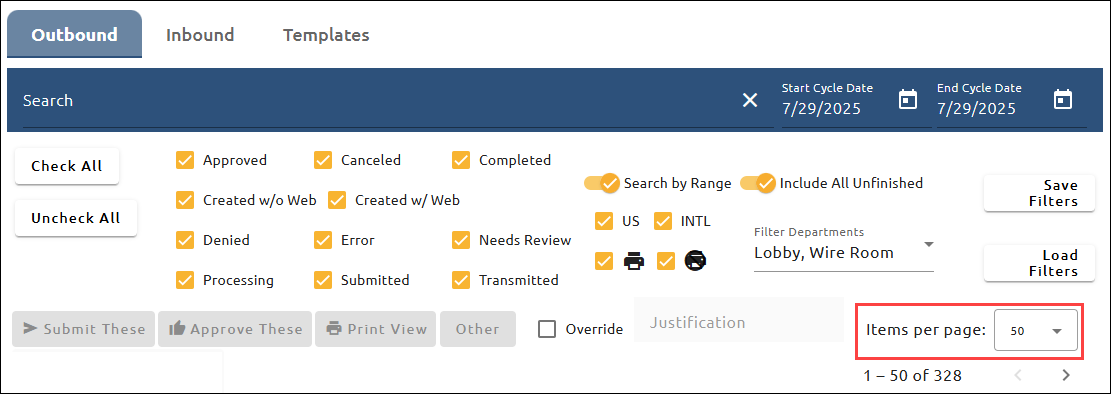
2.Click the drop-down arrow next to Filter Departments if you want to filter the list of wires to only show wires for one or more specific departments. Selecting all departments or selecting no departments in this field will show all wires, including wires that have been previously retired.
Note: The filter departments list only shows departments for which you have security to view and report for. Click the arrow next to Items per page and select the number of wires you want to view on one page. This number will stay at the last setting but can be changed as needed. You can use the right and left arrows (< >) to jump to the next or previous page.
3.Check the box at the left of the outbound wire(s) that you would like to handle.
or
Check the box at the top of the column to check all the wires in the list.
4.Select one of the options above the list or in the Actions column. See the example below.
The options available in the Actions column depend on the wire state shown in the Status column. For explanations of all of these options, see "Wire States in EFT GOLD" in "Using the Dashboard."

Printing Options
You can print various views of outbound wires.
To select a view to print:
1.Check the box next to the wire number you want to print.
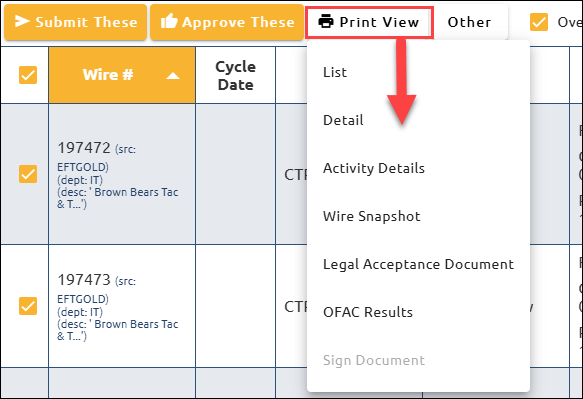
2.Click <Print View>. See the example below.
A selection list opens.
3.Select the option you want from the list.
4.Click <Print>, <Mark wire(s) as printed>, or <Mark wire(s) as NOT printed> on the dialog box that opens.