|
Reconciliations |
  

|
Navigation: »No topics above this level«
Reconciliations
|
Reconciliations |
|
The reconciliation process is used to balance wires processed in EFT GOLD to your institution's FRB wire statement, deposit accounts, and general ledgers. We receive the FRB wire report each day, generally before midnight. There is no extra security needed for this function. A reconciliation record can be created by someone at your institution the following morning. One reconciliation record can be created for each business day, and the records are kept on file the same number of months you set for history retention in Admin > Options > Retention. Reconciliations can be deleted and recreated when necessary.
If your institution is not on FPS GOLD core, you can create and send us a predefined transaction and offset files to be used in this balancing process.
This reconciliation dialog has two tabs, one to view created reconciliation records and one to create them. Users can view, filter, sort, edit, and download .csv files. Create Reconciliations is used to build each day’s balancing data.
Create a New Reconciliation
The Create New Reconciliation tab will pull the last weekday to allow you to create the reconciliation for it. You cannot create a record for today since the processing for the day is required to build the totals. Only one reconciliation can be created for each day.
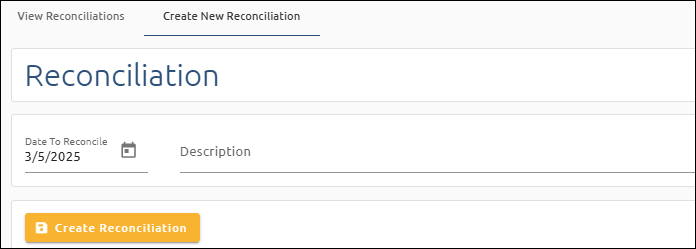
To create a new reconciliation:
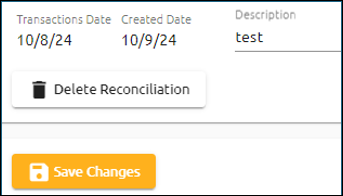
1.Enter a Description for the day if desired. This field is not required, but you can find it helpful if your institution uses some sort of standard format for one.
2.Verify the amounts and postings. You can enter a clarification on any of the items in the list.
3.When completed, click <Create Reconciliation>.
The following dialog displays:

To view all the reconciliations:
1.Click <View Reconciliations> to go to the View Reconciliations tab.
or
Click <Go to the Dashboard> to return to the Dashboard.
The screen shown below lists all the reconciliation records in reverse Reconciliation # order. From this screen, you can download a .csv report, edit, approve, and delete reconciliation records.
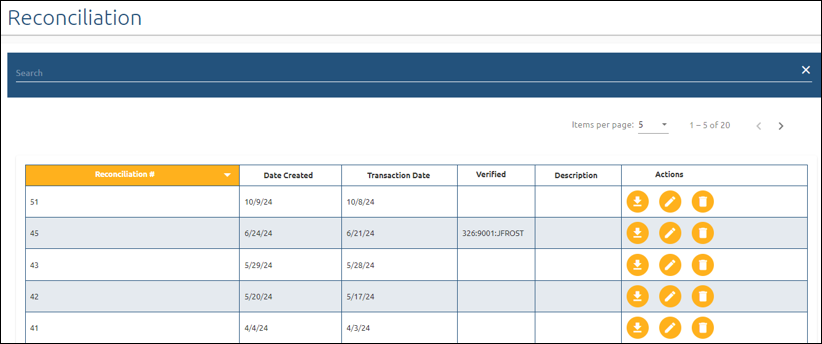
To create the .csv file for the day:
1.Click  .
.
To view the details for the date of the reconciliation you want to work with:
1.Click  .
.
The details for the record are shown below.
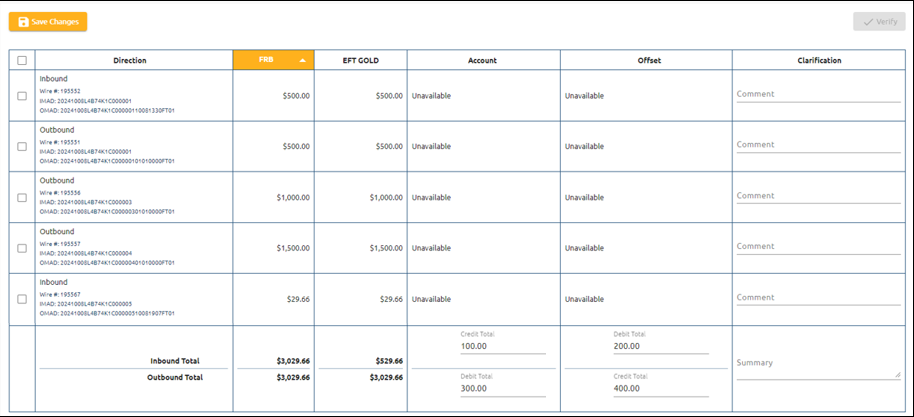
Reconciliation Details
To verify the items in the record:
1.Click the checkbox on the left of the screen.
2.Click <Verify>.
The record can only be verified one time. If changes need to be made, you can recreate the day's work and redo the audit and verification. You can delete the record from this screen.
Column |
Description |
Direction |
This is the direction of the wire. |
FRB |
This is the FRB amount for the wire. |
EFT GOLD |
This is the wire amount in EFT GOLD. |
Account |
This is the amount in the deposit account. |
Offset |
This is the balance in your general ledger account for wires. |
Clarification |
This is any comment about the wire you want to record. |
Totals at the bottom of the list are shown for inbound and outbound wires.
The Summary field can be used for any other information you want to record for the day's balancing.
CSV Reconciliation File
The CSV file contains 19 columns. The first 8 columns (A–H) pertain to the reconciliation as a whole and will only have information on row 2. The remaining 11 columns (I–S) contain data about each transaction individually. These columns will display information starting at row 3 until the end of the document.
The following information gives more detail about the data in the CSV reconciliation file.
Columns A–D
These columns contain data for user-entered Account and Offset corrections.


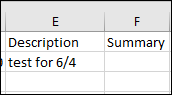
Columns E & F
These columns contain the Description and Summary for the Reconciliation.


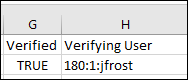
Columns G & H
These two columns show whether the wire has been verified and by whom.

Columns I–K
These columns contain wire number, IMAD, and OMAD respectively per transaction.
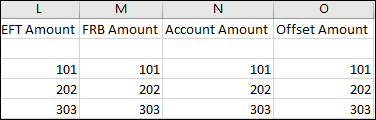
Columns L–O
•EFT Amount: amount on the Funds Transfer Message
•FRB Amount: amount posted from the FRB
•Account Amount: from Core data
•Offset Amount: from Core data

Columns P & Q
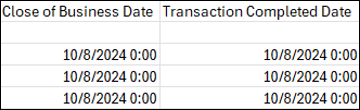
•Close of Business Date: the date of the transaction as received from the FRB. It's used internally.
•Transaction Completed Date: the date the wire was marked as completed. This is the date that is used throughout the application.

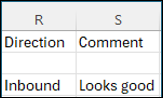
Columns R & S
•Direction: Whether the wire is outbound or inbound.
•Comment: Corresponds to the Clarification column.