|
Submitting a Wire from a Template |
  

|
Navigation: Creating a Wire or Template >
Submitting a Wire from a Template
|
Submitting a Wire from a Template |
|
To submit a wire using a template without changing any data other than the amount:
1.Click on the Templates tab at the top of the Dashboard.

2.Click the arrow next to Filter Departments if you want to filter the list of templates to only show templates for one or more specific departments. Selecting all departments or selecting no departments in this field will show all templates, including templates that have been previously retired. The filter departments list only shows departments for which you have security to view and report.
3.Click the arrow next to Items per page and select the number of wires you want to view on one page. This number will stay at the last setting but can be changed as needed. You can use the right and left arrows (< >) to jump to the next or previous page.
4.Select the wire in the list.
5.Enter the Amount* and the Unstructured Remittance information (outlined in red in the example below). This data populates the Originator To Beneficiary/Unstructured field under the Creditor tab > Other section on the detail of the template record.
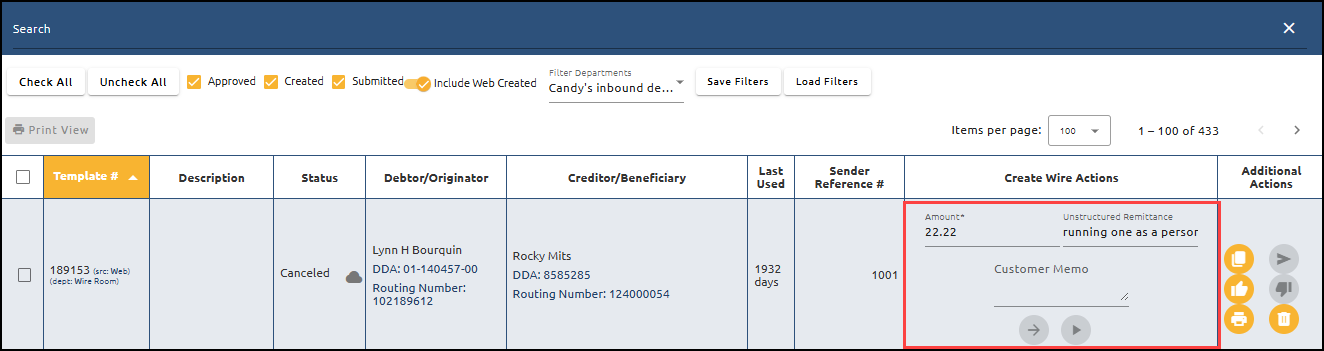
6.Click  to create a new wire from this template, or click
  to create and submit a new wire from this template.
To submit a wire using a template with changes to the wire data:
1.Select the wire and click  to edit this template.
2.Enter the changes. The fields available to be changed on templates are controlled by your institution under Admin > Options > Templates.
3.When you have finished entering all the information for the wire, click one of the following buttons:
•<Create Wire> - to create and save the wire.
•<Create and Submit Wire> - to create and submit the wire for approval.
•<Cancel> - to clear the information and cancel the wire.