Schedule an Emergency Install |
  

|
Navigation: GOLDDeploy Management Screen >
Schedule an Emergency Install |
|
In rare cases, when there is an emergency release created and your institution needs to get it right away, your administrator can use Emergency Install to have GOLDDeploy install it now, instead of waiting for the evening to install it. This function can be used at any time to make a deployment to revert back to an older version of software and deploy the fixed version when it is available.
When the current GOLDDeploy agent is installed on every machine, select the appropriate ReadyToRelease software in the Schedules tab list, set the emergency flag, and set the schedule Ready to Process. The software will be deployed to the target machines within five minutes. A poll will be processed every five minutes until the software is deployed.
To schedule an emergency install:
1.On the Schedules tab, select the ReadyToRelease software you want to install.
2.Right-click on the selected item and select "Update Selected Schedule." See the example below.
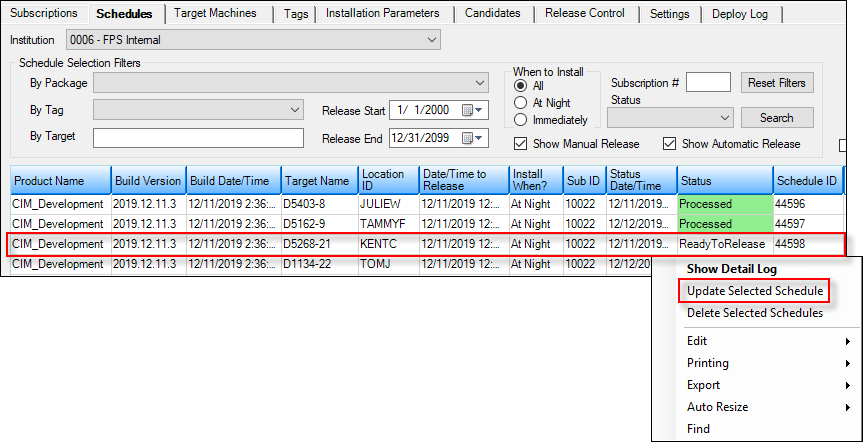
CIM GOLD > Other Applications > GOLD Deploy Management Screen, Schedules Tab
3.On the dialog box that opens, select "Set schedule status to Ready to Process."
4.On the Target Machine tab, select the targets you want to set up.
5.Right-click and select "Set Emergency Flag," or click <Emergency Install> on the top of the screen to mark all of them.
Only the software that has been marked for release will be deployed, and only those with security will be able to click the button.
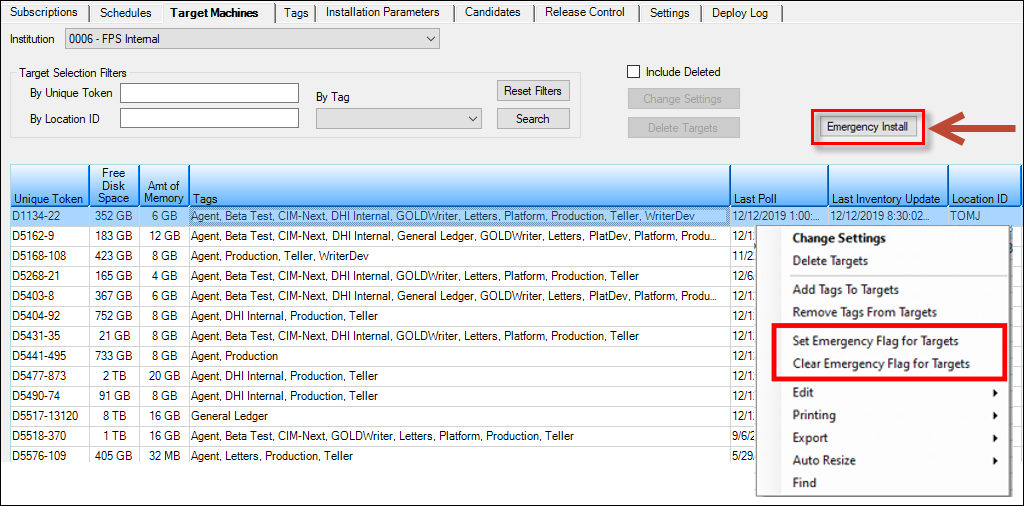
Target Machines Tab
Once the Emergency Flag is set, you can see it in the list view.
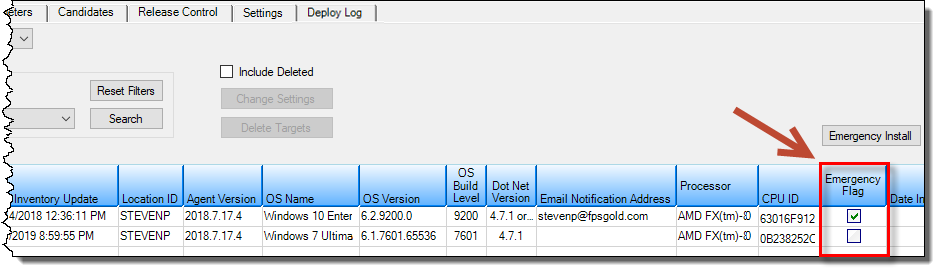
Target Machines Tab