Tags and Settings tab |
  

|
Tags and Settings tab |
|
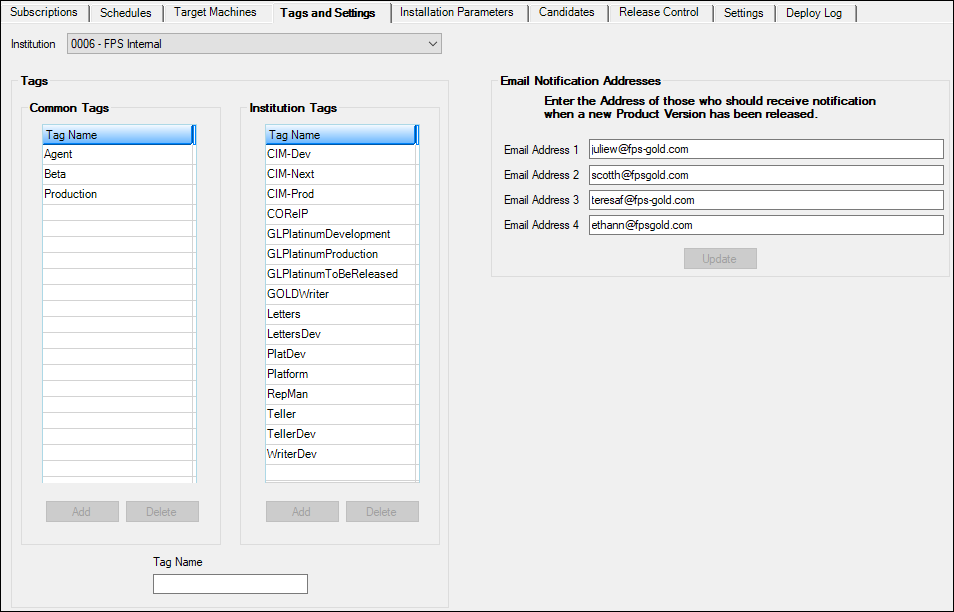
Use the Tags and Settings tab to define Common and Institution tags. Common tags are defined by FPS GOLD and can be used by all banks. Institution tags are tags that each bank can assign for their own use. Bank employees can see but not change the common tags, but they can add and delete tags for their own use.
You can also add up to four email addresses to designate who will receive notifications when a new product version has been released.
WARNING
Deleting a tag also removes the tag from all target machines and from all subscriptions. |
Tags are attached to subscriptions to determine what the subscription package should be scheduled to, and they are attached to target machines to describe attributes of the machine that should be scheduled to receive the subscribed product installation. The common tags list and the institution tags list each has its own <Add> and <Delete> buttons, but the text box between them works for either list.
To add a tag to either tag list:
1.Click on a blank line in either the Common Tags or the Institution Tags list, depending on where you want to add the tag.
2.Enter the tag text into the Tag Name below the Common Tags list.
3.Click <Add> at the bottom of the appropriate list.
To remove a tag from the system:
1.Select the tag you want to delete.
or
Right-click on the tag to open a pop-up menu.
2.Click <Delete>.
3.Click <Yes> on the Verify Delete dialog box.
To change the label for a tag:
1.Select the tag you want to rename.
2.In the Tag Name field, change the text.
3.Click <Update>.