Schedules tab |
  

|
Navigation: GOLDDeploy Management Screen >
Schedules tab |
|
Use this tab to specify when release packages will be installed on target machines or to view existing schedules. Filters at the top of the screen control the data displayed on the screen when you click <Search>. Right-click on the screen to open a menu of screen actions.
Most of the columns correspond to the fields at the top of the screen. See the field help or the table in the Schedules list view section for an explanation of the columns.
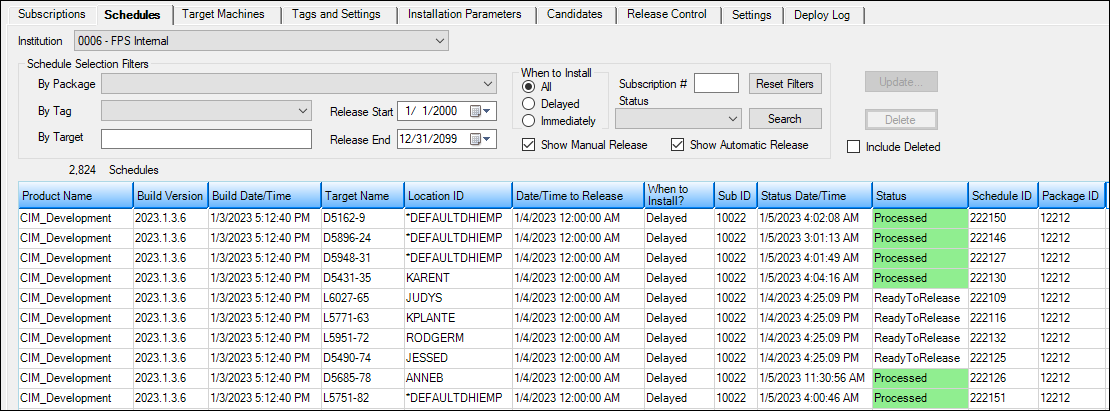
If you have the appropriate security, you can view the detail log and delete or update selected schedules.
The detail log shows information associated with a schedule when the status of the schedule is either Processed or Failed.
To show the detail log:
1.In the list view, right-click on a schedule that you want to view the details for.
The menu below opens.
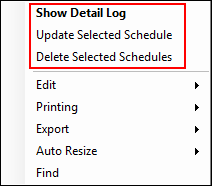
2.Select "Show Detail Log."
To delete schedules:
1.In the list view, select the schedules that you want to delete.
2.Click <Delete> in the upper-right corner of the screen.
or
Right-click to open the menu shown above and click "Delete Selected Schedules."
To update schedules:
1.Select a schedule that has the ReadyToRelease status.
2.Click <Update> in the upper-right corner of the screen.
or
Right-click to open the menu shown above and click "Update Selected Schedules."
The dialog box shown below opens.
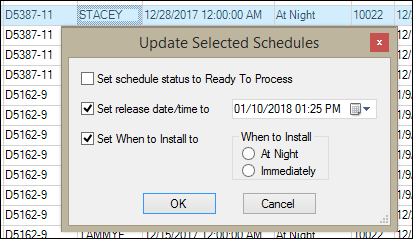
3.Select the appropriate fields (explained below), then click <OK>.
•Set schedule status to Ready To Process – Check this field to reset the status of a Processed schedule to ReadyToRelease.
•Set release date/time to – Check this field to change the selected schedule's release date and time, then enter a new date and/or time in the field to the right. It defaults to the current date and time, but you can change it to any date and time. The scheduled package will be released on or after this date. You can also specify how often to check for new versions using the Agent Configurator. See Available Options in the GOLDDeploy Agent section for more information.
•Set When to Install to – Check this field to install all selected schedules either at night or immediately, depending on which radio button you select.
Schedule Selection Filters field group
See Also