Using the Dashboard |
  

|
Navigation: »No topics above this level«
Using the Dashboard |
|
When you have completed your user record, you can view the Dashboard. The example below shows the home page with the Dashboard open. The fields are explained below the example.
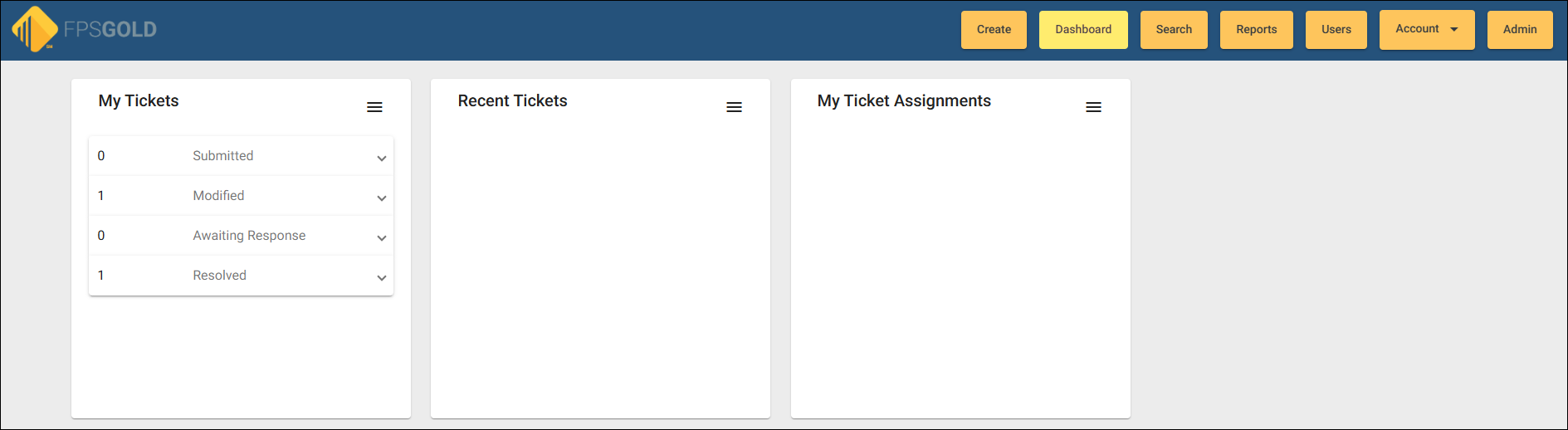
Home Page with Dashboard
•Dashboard cards will refresh automatically every five minutes.
•Dashboard cards will have an icon indicating the ticket is Awaiting Response (A), Closed (C), or Resolved (R).
•Recent Tickets are the tickets for the entire institution.
•Dashboard cards have drop-down icons  that can be expanded to view additional information about a ticket.
•Dashboard tabs (Create, Dashboard, Search, Work Order, Users, Account, Admin) give you access to additional screens in Help Desk.
You are the assigned Customer Contact for all tickets in the My Tickets Dashboard card.
The fields in the My Tickets group contain links to all Submitted, Modified, Awaiting Response, Resolved, and Closed tickets you own.
To view links in a My Tickets category:
1.Click on Submitted, Modified, Awaiting Response, Resolved, or Closed to view tickets in each category. See the example below.
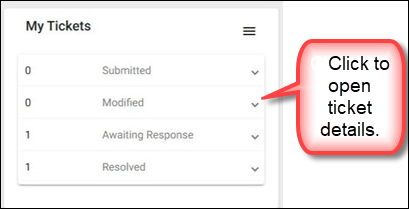
Links to Tickets
To read the details pertaining to that ticket, click on the icon beside the title or on the white space above or below the ticket. See details pertaining to the ticket in the example below. To improve the load time of the dashboard screen, My Tickets no longer contains closed tickets.
Viewing a Ticket
Tickets can be viewed in any category on your My Tickets dashboard card. Each ticket includes a hyperlink on the title of the ticket. When you click on the title of the ticket, it opens the full view of your ticket. Tickets can be viewed from any Dashboard card on the main menu.
The list of Recent Tickets group contains links to all currently submitted and modified tickets at your bank, including Awaiting Response, Resolved, and Closed tickets. The Recent Tickets group shows all tickets for all of time except closed tickets. Closed tickets only show on the Recent Tickets group for that day.
Help Desk users will now be able to sort tickets by department or ticket number on the Recent Tickets Dashboard card using sorting options located under the hamburger menu.
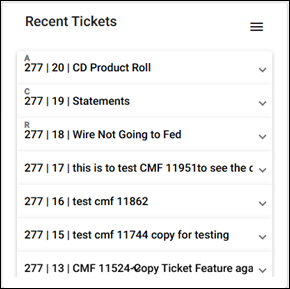
To view details of a recent ticket:
1. Click on the title of the ticket in the Recent Tickets list to open the ticket. See the example below.
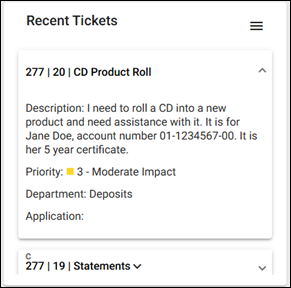
Details of Ticket #20
This list shows any assignment you have been given on any ticket. See the example below.
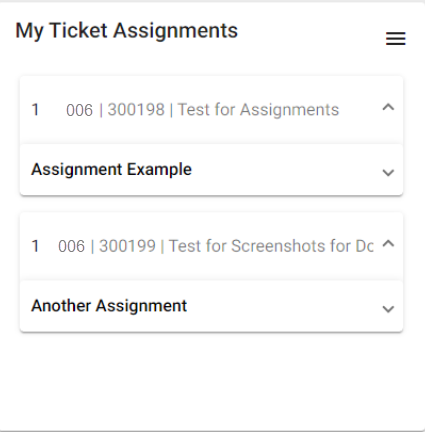
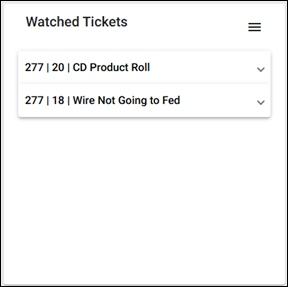
Watched Tickets show any ticket you have chosen or have been assigned to follow for updates. As a ticket watcher, you receive email updates when a ticket has new information for you to view. As a ticket watcher, you also have the option to add comments and attachments or simply view the updated information on the ticket.