Dashboard Tabs
|
  

|
Navigation: »No topics above this level«
Dashboard Tabs
|
|
The Dashboard has seven tabs, as shown below.

•Click the <Create> button to create tickets. See the section below.
•Click the <Dashboard> button to view and work with the Dashboard. See Using the Dashboard for more information.
•Click the <Search> button to search within Help Desk. See Searching Help Desk for more information.
•Click the <Work Order> button to open the FPS GOLD secure site and create a work order.
•Click the <Users> tab to see a list of current Help Desk users at your institution
•Click the <Account> tab to view and update your Help Desk profile.
•The <Admin> tab allows employees with security to create and update branches and positions.
Use the Create tab to create tickets. Only users with TicketUpdater or TicketAdmin security can create tickets. The system will spell check for you. No grammar checking is provided.
To create a ticket:
1.Click <Create> at the top of the screen to open the New Ticket dialog box.
2.Type a title for the new ticket. Please avoid using Personal Identifiable Information (PII) in the title of your ticket, such as full card numbers, SSN, or full account numbers.
3.Type a description for the ticket. Help Desk is a secure site, and PII can be added to the description. For example, you can add full names and complete account numbers to your description. However, due to PCI compliance guidelines, only include the last four digits of card numbers.
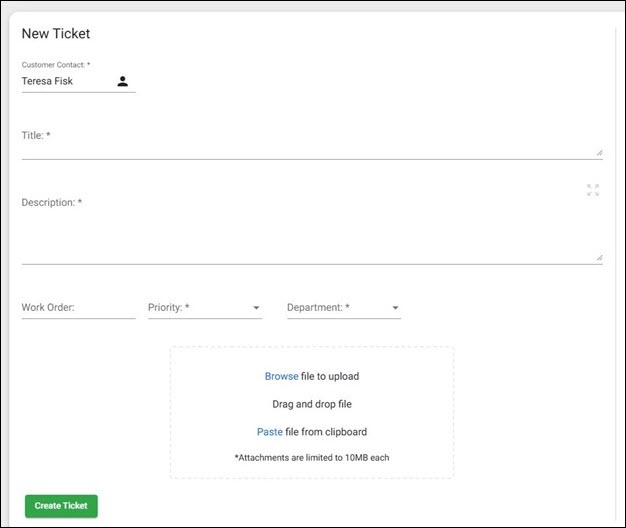
4.Choose a priority level from the drop-down list shown below. You can hover your mouse pointer over any item in the list to see a tooltip with a brief definition of that item.
Users who do not have TicketAdminSecurity in Help Desk will no longer be able to select Priority Level 1. Users with TicketAdminSecurity can select Priority Level 1. A pop-up will appear with this message: “Is your entire institution unable to function? If your answer is no, this should be a priority level 2 or lower. If this is an emergency, please call 1-800-453-9400 ext. 6723, 6724, or 6728." If "No" is selected, another Priority Level can be chosen.
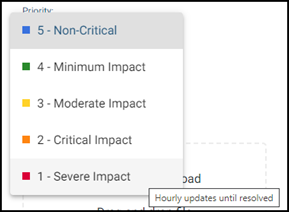
Priority Drop-down List
The table below gives a brief explanation of the priority levels. For more information about priority levels, please see "How Severe is My Issue?" in the Client Support Reference Guide on the FPS GOLD website (https://www.fpsgold.com/contact-us, then click <View Client Support Guide>).
Priority Level |
Explanation |
|---|---|
5—Non-Critical |
This is the lowest priority. You will receive weekly updates until the ticket is resolved. |
4—Minimum Impact |
If you select this priority level, you will receive updates every three days until the ticket is resolved. |
3—Moderate Impact |
If you select this priority level, you will receive updates daily until the ticket is resolved. |
2—Critical Impact |
If you select this priority level, you will receive updates every four hours until the ticket is resolved. |
1—Severe Impact |
If you select this priority level, no one assigned to this ticket at your institution or FPS GOLD will go home until the issue is resolved. You will receive hourly updates. |
5.Select a department from the drop-down list. Every member of the selected department and your assigned Client Services banking consultants will be notified of the ticket. If you select "Account Manager," the assigned Client Services banking consultants as well as your account manager will be notified.
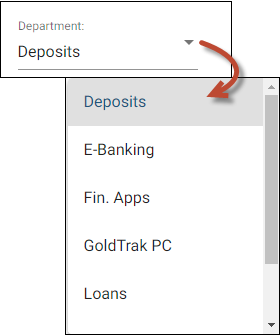
Department Drop-Down List
Note: The "Ticket System" department is for reporting problems with the Help Desk system.
6.Attach a file if needed. See Adding Attachments below for details.
7.Click <Create Ticket>. An email message will be sent to anyone in the department, including your assigned client services banking consultants you selected in Step 5.
If you want to view the description of the ticket in a separate pop-out window, click on the four arrows  in the upper-right corner of the Description to view the pop out window. The Description box can be expanded by dragging the lower right-hand corner down to view the full description.
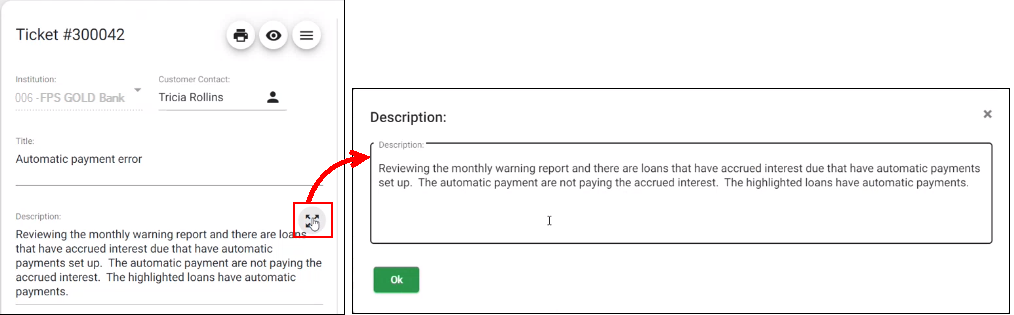
Click the pop-out button to open the Description in a separate window.