Ticket Screen |
  

|
Navigation: »No topics above this level«
Ticket Screen |
|
The screen for a created ticket is always displayed so you can review the details. See the example below.
The numbers on the example below correspond to the numbered explanations after the example.
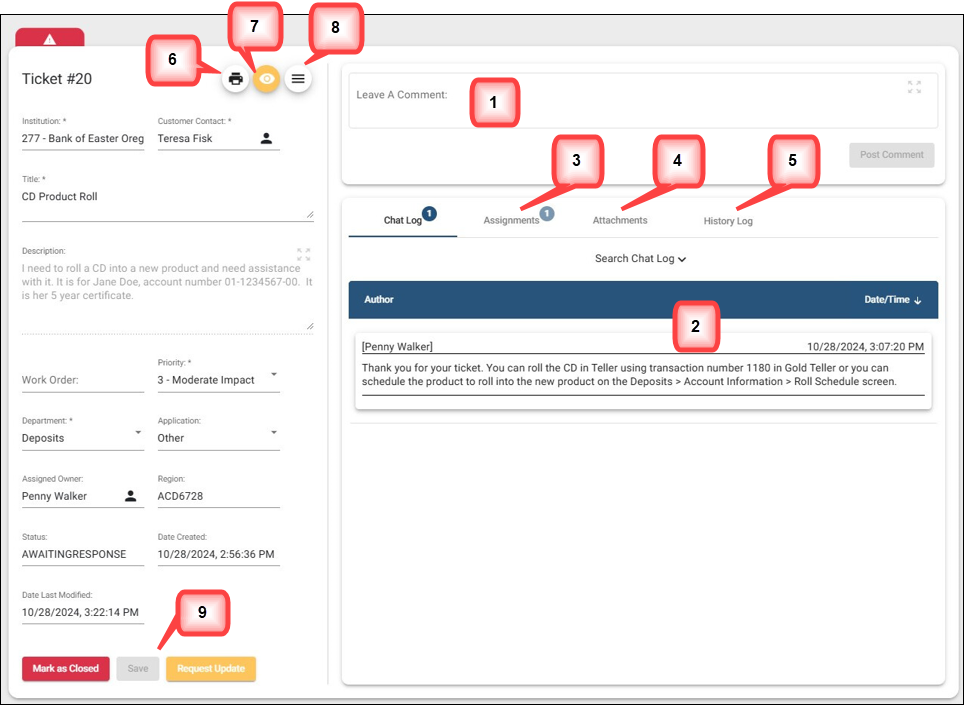
1.In the Leave a Comment text box, you can type a comment on the ticket. Click the pop-out icon in the upper-right corner  if you want to open the comment box in its own window. Review Pop out windows above.
2.Comments will post to the Chat Log so FPS GOLD and bank users can see them. You can search in the Chat Log. See Searching the Chat Log below for more information.
3.Click on the Assignments tab to assign the ticket to a user. See Adding Assignments below for more information.
4.Click on the Attachments tab to attach a file, if needed. See Adding Attachments below for more information.
5.Click on the History Log tab to view a list of changes made to the ticket since it was created.
6.The Print Ticket icon allows you to print the ticket with or without the chat log to your printer or to PDF.
7.The Watch Ticket icon allows you to add yourself to a ticket so you can watch the ticket and receive update notifications.
8.The Hamburger Menu icon allows you to add others to a ticket to watch the ticket and receive update notifications.
9.Ticket Options:
o<Mark as Closed> When the issue has been resolved, click <Mark as Closed> to close the ticket.
o<Save> If changes are made to the left side of the ticket, click <Save>. Comments, Assignments and Attachments are automatically saved.
oClick <Request Update> to ask FPS GOLD for information on the status of the ticket. This information is sent to the assigned owner of the ticket.
The Clone the Ticket/Copy icon appears on closed tickets only and allows you to copy an existing closed ticket to create a new ticket.