|
How to Sign Wire Acceptance Documents |
  

|
Navigation: Using the Dashboard > Handling Inbound Wires > Details, Actions, and Errors for Inbound Wires > Documents tab >
How to Sign Wire Acceptance Documents
|
How to Sign Wire Acceptance Documents |
|
You can sign and attach documents in two ways: sign at the time the wire is being created and sign for an existing wire. Then you can download the signed document and view it.
To sign and attach a Wire Acceptance document to a wire being created:
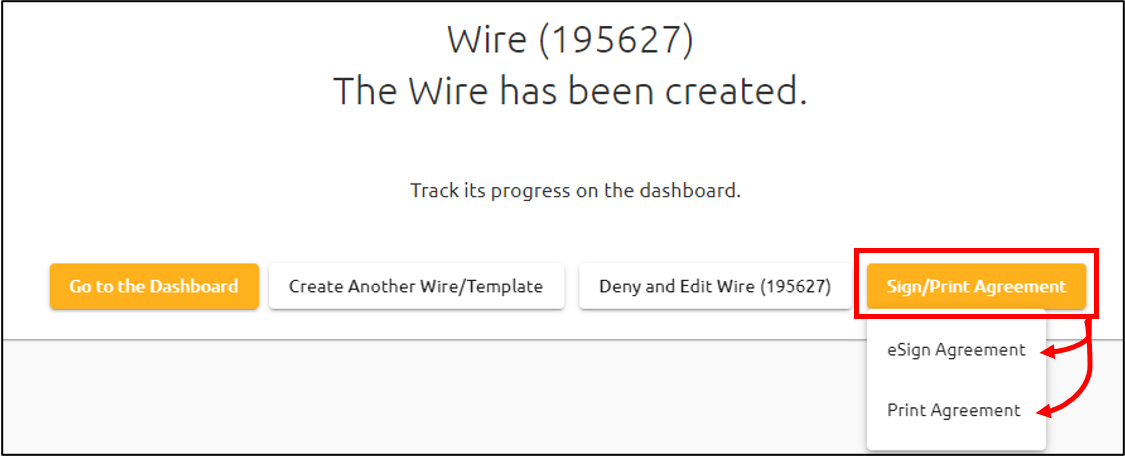
1.After creating a wire, click <Sign/Print Agreement > <eSign Agreement>, as shown below. This will render the form containing the legal information defined by your institution and will display the specific wire details.
2.Display the document to the customer to review.
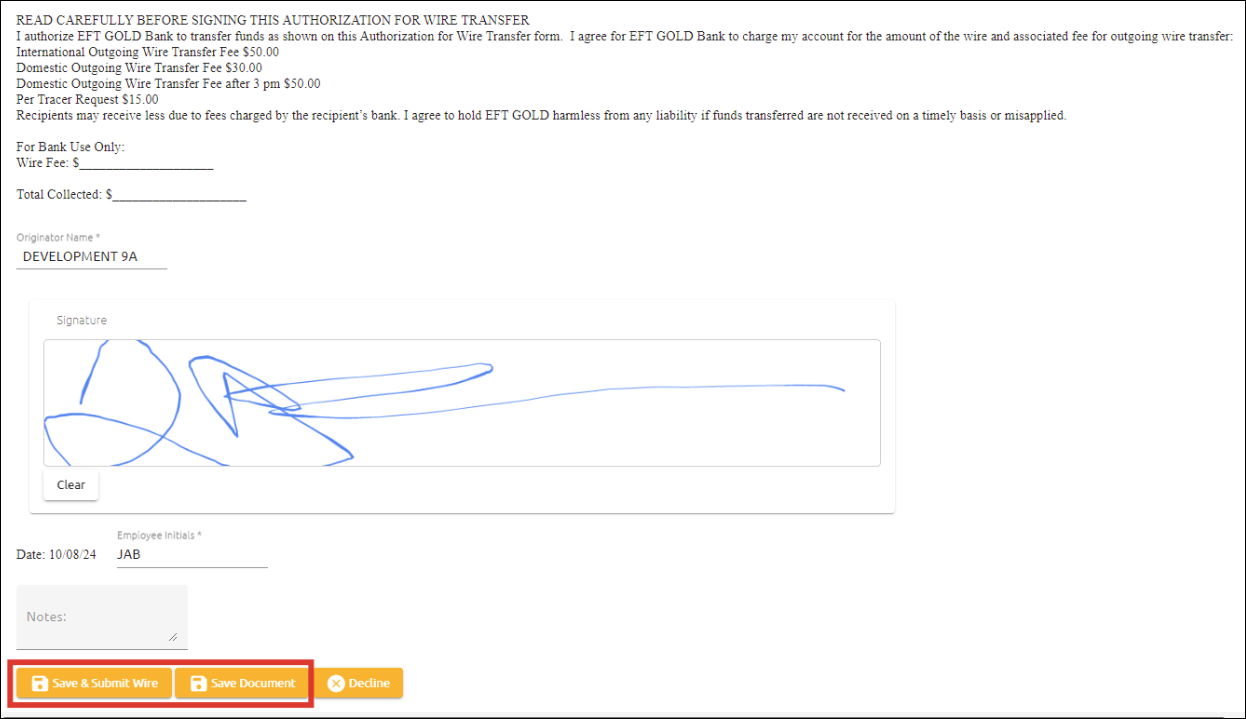
3.If the customer agrees to everything, they will sign with a finger or pen, depending on the device. If a signature pad is being used, the <Sign with Signature Pad> button will be used to capture the signature.
4.Your employee will type in their initials stating they witnessed the signature.
5.Click either <Save & Submit Wire> or <Save Document>.
Clicking <Save & Submit Wire> creates a PDF of the document including the signature (as shown below), which can be viewed with other documents attached to the wire. Additionally, the wire gets submitted. <Save Document> functions similarly to <Save & Submit Wire>, but the wire does not get submitted.
6.Close the browser tab displaying the Wire Agreement.
If the customer does not agree to something on the wire document, decline and edit the wire.
To decline and edit the wire:
1.Click <Decline>.
2.Click <Edit wire>.
3.Correct information on the wire.
4.Click <Save> and <Submit>.
5.Click <Sign/Print Agreement> <eSign Agreement> .
6.Repeat steps 2–6 above.
To sign and attach a Wire Acceptance document to existing wires:
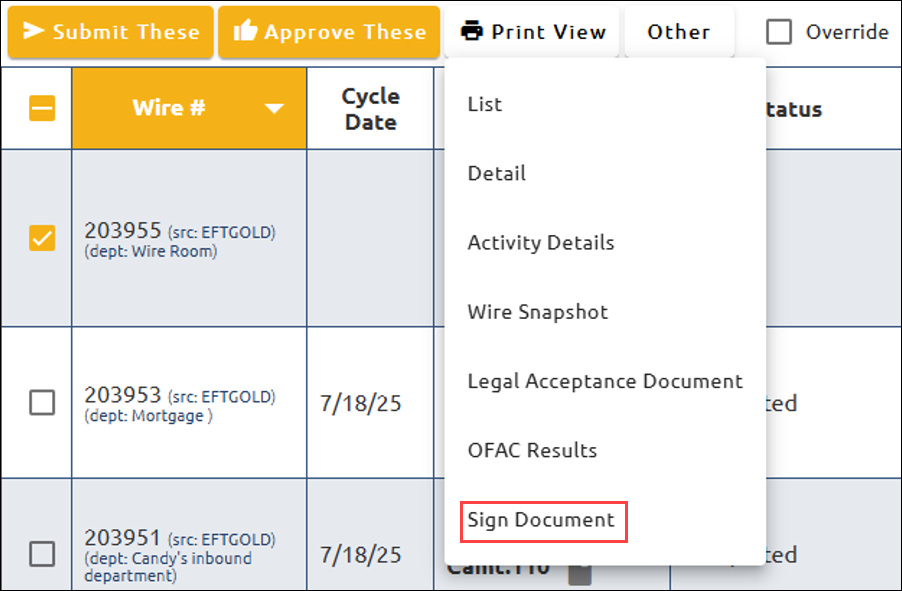
1.On the Dashboard, check the wire that needs the Wire Acceptance Form signed.
2.Click <Print View> and select <Sign Document>.
3.Complete steps 2–6 above under "To sign and attach Wire Acceptance document to a wire being created."