Setting Up GOLD EventLetters Security |
  

|
Navigation: »No topics above this level«
Setting Up GOLD EventLetters Security |
|
Setting up security for GOLD EventLetters is specific to the Loans and Deposits systems. However, general security for the GOLD EventLetters program is set up as follows:
| 1. | In CIM GOLD, access the Security > Setup screen from the left tree navigation. |
| 2. | Select the employee you are setting up in the employee list view, and then access the System tab. |
| 3. | Expand the FPS PC Applications menu, and scroll to the GOLDEventLetters Access option. |
| 4. | Select the Maintain radio button if this person should have access to GOLD EventLetters (as shown below). |
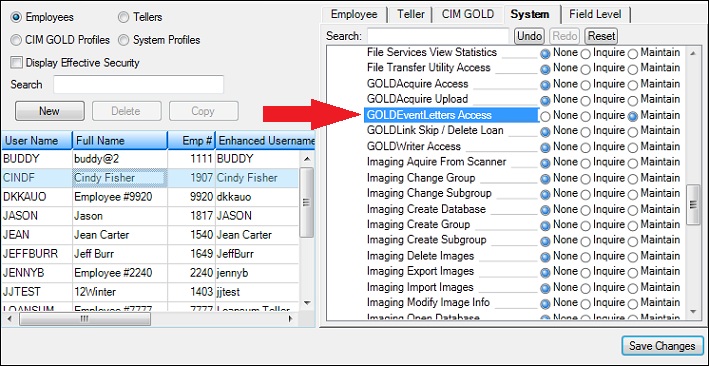
Security > Setup Screen, System Tab in CIM GOLD
| 5. | Click <Save Changes>. |
In order for employees to be able to request event letters on accounts, the employee must have screen-level access to the Deposits > Definitions > Event Setup screen in CIM GOLD.
FPS GOLD Only
In order for deposit events to generate, JCl FPSAHN.N must include FPSDEPEV and EVNTSRT. |
1.On the Security > Setup screen in CIM GOLD, access the CIM GOLD tab.
2.Expand the Deposits > Definitions menu, and scroll until you see Event Setup.
3.Select the Maintain button to the right of Event Setup (as shown below).
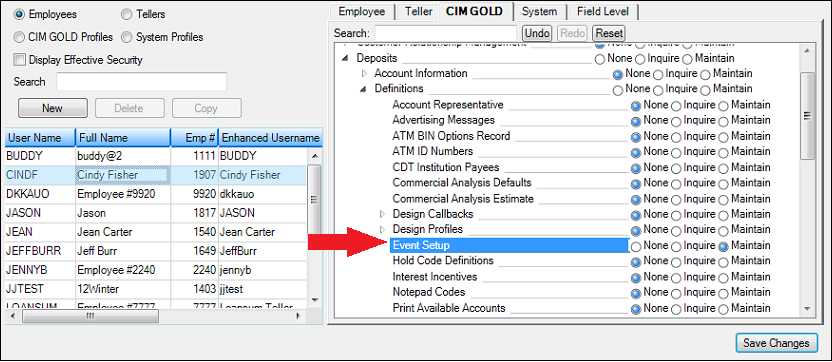
CIM GOLD > Security > Setup, CIM GOLD Tab
4.Click <Save Changes>. This employee now has access to the Deposit Event Setup screen.
In order for employees to be able to request event letters on loan accounts, the employee must not be restricted from field-level access to the event fields found on the Letters & Actions tab found on various screens in the CIM GOLD Loans system.
To see if field-level security is restricted:
1.Access the Security > Setup screen for the employee who you are setting up security for, and then access the Field Level tab.
2.In the Record Type field in the All Fields field group, select "CFLN - Loan Master."
3.Click on the Field Description column heading to sort the fields alphabetically.
4.Scroll to the Event Date 1 field (LNEVDT).
5.If those fields are checkmarked (as shown below), the employee is restricted from making changes to those fields on the Letters & Actions tab. Uncheck the fields and that employee should then have access to make changes to those fields.
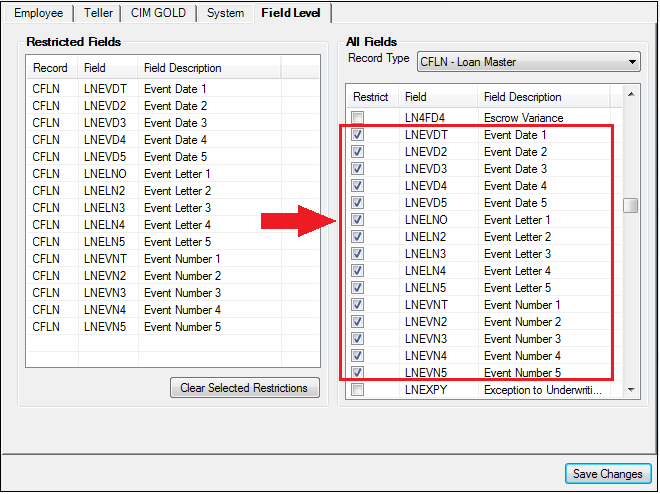
CIM GOLD > Security > Setup, Field Level Tab
6.Click <Save Changes>.