Deposit Event Descriptions |
  

|
Navigation: Deposit Event Processing >
Deposit Event Descriptions |
|
To set up which deposit events you want to generate, you will need to use the Deposits > Definitions > Event Setup screen. This section describes the events available for set up on the Event Setup screen. Deposit Event Letters can be used to notify your customers of a variety of events that can occur on deposit accounts, such as certificate maturities, new accounts, interest postings, retirement distributions, address changes, and much more.
Features and options must be set up on this screen before any event letters can be processed through GOLD EventLetters™.
To make changes to the options on this screen, you must first give your employees the appropriate access and security.
You can print event letters using GOLD EventLetters and Microsoft® Word® and following these steps:
1.Download the day's events from GOLD EventLetters.
2.Create your letter using Microsoft Word, and insert merge fields from the file created by GOLD EventLetters. (This step may only have to be done once or updated periodically.) Also see Setting Up GOLD EventLetters (Deposits) for a list of merge fields available.
3.Assign the letter you created in Microsoft Word to data files in GOLD EventLetters.
4.Print the letters using GOLD EventLetters.
The following is an example of the Deposits > Definitions > Event Setup screen in CIM GOLD:
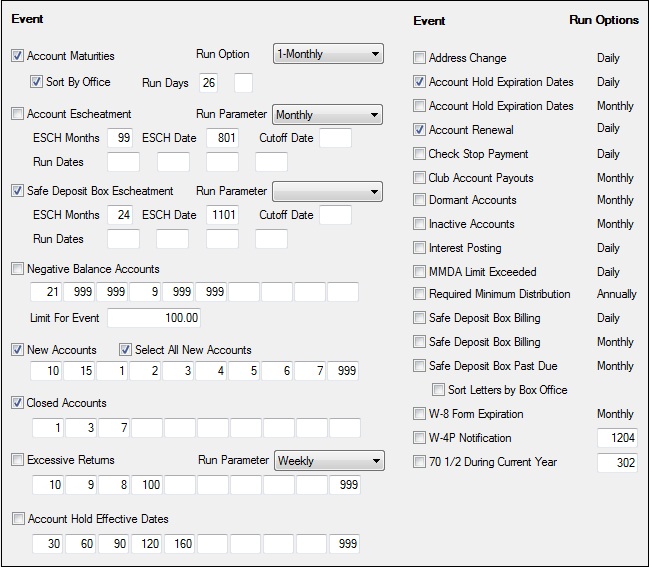
Each event is preceded by a checkbox enabling your institution to mark whether you want to use the event or not. Enter a checkmark in the box if you want it, or leave it blank if you don’t. Only the events marked with a checkmark will create letters. For events marked with a checkmark, run options must also be entered. Run options tell the system when to run events. Depending on the events, they can be run daily, weekly, monthly, yearly, or whenever your institution specifies as permitted.
Each event also has a system-defined event number. If different options are available based on account criteria, a four-digit event letter number is also listed. When there are different event letter numbers available, you can create different event letters in your Microsoft Word file. The numbers and letters are listed under the event in the following event descriptions. The following event descriptions specify what run options to use for each event.
|
An option is available that will separate the “No Mail” letters to their own event. The system will add 100 to the original event number, and all “No Mail” letters will be generated for that event (for example, no mail 1040 events will become 1140). These new events will need to be attached to a letter before they can be printed. If your institution would like to use this feature, you will need to tie the appropriate event numbers to your event letters, then submit a work order to have the option turned on for the Event Letter Generation Report (FPSDR500). If this option is not used, the “No Mail” letters will be intermingled with the letters to be mailed, but will still indicate the “No Mail” status. |
Event |
Event Number |
Event Letter |
Description |
|||||||||
|---|---|---|---|---|---|---|---|---|---|---|---|---|
Account Maturities |
4010 4110 (No Mail - see Option box above) |
Four-digit Product Code
Or
If the Sort by Office field under the Account Maturities field is checked, then the letter number will be the account's office number. |
This event will run based on three different run options, with up to two different monthly run days. An anticipated balance and next maturity date are calculated and available for use with this event. For Interest Destination 1 (pay interest by check) and 2 (transfer interest by Customer Directed Transfers), the anticipated balance will be the current balance. For Interest Destination 0 (pay interest to the account), the anticipated balance will be the interest for the coming term added to the current balance. (Interest Destination is found on the Deposits > Account Information > Interest Fields screen in CIM GOLD.) The options are as follows:
Run option 1 runs monthly. If you want all certificates with a maturity date in the next month to generate an event record, select “1=Monthly” from the Run Options field. The event will process each month on the day entered in the Run Days field.
Run option 2 allows you to generate up to two different monthly run days. To use two run days, select “2=Two Different Run Days” from the Run Options field. For accounts maturing on days 1 through 15 of the next month, type any number between 1 and 15 in the first Run Days field. You must generate account maturity events for all accounts maturing from day 16 to the end of the current month. To do this, type a number between 16 and 31 in the second Run Days field.
Run option 3 runs weekly. Select “3=Weekly” in the Run Options field to use this option. It adds 28 days to the run date and generates records for accounts maturing between that day and the same day the following week. Type a number indicating the day of the week in the Run Days field:
2 Monday 3 Tuesday 4 Wednesday 5 Thursday 6 Friday 7 Saturday
Note: Once you download the Account Maturities letters from GOLD EventLetters, the merge fields applicable to that letter can be inserted using Microsoft Word. The TERM_TYPE merge field will be plural unless the TERM merge field is equal to "1" (for example, 1 month, 1 year; 3 months, 3 years). We suggest that you make sure your Maturity Event Letters are grammatically correct with this in mind. For example, if you enter "your <<TERM>> <<TERM_TYPE>> certificate" and the certificate term is for three months, the letter would print "your 3 months certificate." Instead, you can write “your certificate matures in <<TERM>> <<TERM_TYPE>>," and the letter will print "your certificate matures in 3 months” when the fields are merged with actual data.
See Tying Data Source Files to Event Letters for detailed instructions on merge fields. |
|||||||||
Account Escheatment |
4020 4120 (No Mail - see Option box above) |
If account is > $25.00, then first two digits = 25. Last two digits: 01 = Checking 02 = Savings 03 = Certificate 04 = Retirement |
To process this event, the escheatment months and escheatment date must also be filled in. Enter the number of escheatment months your institution is required to use in the ESCH Months field, and enter the escheatment date your institution is required to use in the ESCH Date field. The data in these fields overrides the institution options used for the notices generated during afterhours. Escheatment months are defined as the number of months from the date of last customer contact until an account becomes escheatable. The escheatment date is the month and date (MMDD) accounts escheat to the state each year. A certificate is not escheatable in its first term. An account with no dormancy term is not escheatable.
The event can be run two ways. The first option you can use is the run dates. When using the run dates, up to four different run dates in MMDD format can be used in the Run Dates field. All accounts that become escheatable by those four dates will create an event record. Use the cutoff date with the run dates. The cutoff date pulls the same accounts on each run date. The Cutoff Date field is file maintainable. If used, all accounts that become escheatable by the cutoff date instead of the run date will create an event record.
The second option that can be used instead of the run dates is the run parameter. Valid data for the Run Parameter field is "M = Monthly," "Q = Quarterly," and "S = Semi-monthly." If a parameter is used, this event will run the last processing day of each month, quarter, or six months, depending on the parameter used. All accounts that become escheatable in the next month, quarter, or six months will be selected. |
|||||||||
Safe Deposit Box Escheatment |
4030 4130 (No Mail - see Option box above) |
None, unless the Sort All Box Letters by Box Office field is checked. In which case, the safe deposit box office number will appear. |
This event works similarly to deposit account escheatment. This event bases the escheatment on the date of last activity. Enter the number of escheatment months your institution is required by the state to use in the Esch Months field, and enter the escheatment date your institution is required to use in the Esch Date field. Escheatment months are defined as the number of months from the date of last customer access until a safe deposit box becomes escheatable. The escheatment date is the month and day (MMDD) accounts escheat to the state each year. The only fields used to create the safe deposit box escheatment event letter are as follows:
Box Branch Number Box Number Last Activity Date Amount Due Due Date Date Box Opened Escheatment Date Account Number (if there is one tied to the safe deposit box) |
|||||||||
Negative Balance Accounts |
5010-5019
5110-5119 (No Mail - see Option box above) |
0001 = Checking 0002 = Savings 0003 = Certificate 0004 = Retirement |
This event runs daily in the afterhours. You need to choose the days negative you want letters generated on for negative accounts. Ten intervals can be entered in the Run Options column. Each interval has a separate event number. The first interval’s event number is 5010, the second is 5011, third is 5012, fourth is 5013, fifth is 5014, sixth is 5015, seventh is 5016, eighth is 5017, ninth is 5018, and tenth is 5019.
Any account that has a negative balance will create an event record. You can specify an amount for the negative balance limit you want for letter creation. Enter a figure in the field under the negative balance account’s intervals. The minus sign is already entered on the screen. You can choose to generate a record on the day an account goes negative and for nine other days. For example, if you want a letter to generate on the first day an account becomes negative and every week after, then type “1,” “8,” “15,” “22,” “29,” and “30” in the Run Options column. You can generate up to 10 letters a month for negative accounts. If a run date falls on a non-processing day, the record will be generated the processing day before the run date you specified in the Run Options column.
In the Limit for Event field, enter the negative balance limit you want to generate a letter. This amount needs to be a positive number because the system will calculate it as a negative amount (the minus (-) sign is already entered on the screen). If this field is left at zero, any account with negative balance will produce an event letter. |
|||||||||
New Accounts |
5030-5039
5130-5139 (No Mail - see Option box above) |
0001 = Checking 0002 = Savings 0003 = Certificate 0004 = Retirement |
This event runs daily in the afterhours. You need to choose the days you want letters generated for closed accounts. Any day of the month can be used; however, only 10 days can be entered in the Run Options column. Each day has a separate event number. The first day's event number is 5030, the second is 5031, third is 5032, fourth is 5033, fifth is 5034, sixth is 5035, seventh is 5036, eighth is 5037, ninth is 5038, and tenth is 5039.
A new account will create an event record on the day you specify unless the owner of the account already has accounts with your institution. For example, if you want a letter to generate on the first day an account is opened and every week after, then type “1,” “8,” “15,” “22,” “29,” and “30” in the Run Options column. If an account is going to reach a specified date on a non-processing day, it will be pulled in the processing day before it reaches the date specified in the Run Options column.
Check the Select All New Accounts checkbox to produce letters for all new accounts for old and new customers. (If this box is not checked, New Account letters will only generate for new customers, not existing customers who opened new accounts.) This option will also produce letters for each account opened for the same customer on the same day. The same Event 5030 will be used. |
|||||||||
Select All New Accounts |
Checking the New Accounts box produces letters for new accounts for new customers who do not have an existing accounts. Checking this box (Select All New Accounts) allows you to produce letters for all new accounts for both existing and new customers. This option will also produce letters for each new account opened for the same customer on the same day. The same event 5030 will be used. (See the New Accounts definition above for more information on event numbers.) Both New Accounts and Select All New Accounts must be checked to get "All New Accounts" letters. |
|||||||||||
Closed Accounts |
5050-5059
5150-5159 (No Mail - see Option box above) |
0001 = Checking 0002 = Savings 0003 = Certificate 0004 = Retirement |
This event runs daily in the afterhours. You need to choose the days you want letters generated for closed accounts. Any day of the month can be used; however, only 10 days can be entered in the Run Options column. Each day has a separate event number. The first day's event number is 5050, the second is 5051, third is 5052, fourth is 5053, fifth is 5054, sixth is 5055, seventh is 5056, eighth is 5057, ninth is 5058, and tenth is 5059.
Any closed account will create an event record on the day you specify. For example, if you want a letter to generate on the first day an account is closed and every week after, then type a “1,” “8,” “15,” “22,” “29,” and “30” in the Run Options column. If an account is going to reach a specified date on a non-processing day, it will be pulled in the processing day before it reaches the date specified in the Run Options column.
To prevent an account from generating a letter, type an asterisk (*) in the first character of the Closing Reason field. Closing transfers automatically have “* CLOSING TRANSFER” in the Closing Reason field, so an event record will not be created for transfer closings. |
|||||||||
Excessive Returns |
5070-5079
5170-5179 (No Mail - see Option box above) |
0001 = Checking 0002 = Savings 0003 = Certificate 0004 = Retirement |
This event runs in the afterhours either monthly, quarterly, or semi-annually. Type “M” (Monthly), “Q” (Quarterly), or “S” (Semi-Annually) in the Run Parameter field. Any account where the date of last return is in the prior week/month will be considered. The weekly option will run on Fridays, using Saturday as the start of the week. The monthly option will run on the last processing day of the month. If Friday is a non-processing day, then this event will run before, on Thursday when using the weekly option.
This event is based on the total life-to-date returns calculated by adding life-to-date returned checks (DMRALD) with life-to-date returned ACH items (DMRCLD). These fields are found on the Deposits > Account Information > Activity Information screen). If numbers 5, 10, and 15 are entered in the Run Options column, then accounts with five through nine returns will be event number 5070; accounts with 10 through 14 returns will be event number 5071; accounts with 15 or more returns will be event number 5072. This continues through all 10 spaces in the Run Options column. |
|||||||||
Account Hold Effective Dates |
3010-3019 3110-3119 (No Mail - see Option box above) |
You can use any letter number you want for these events. Enter the number in the Document field on the Deposits > Account Information > Restrictions & Warnings screen, Restriction/Action Codes tab in CIM GOLD.
TIP: We suggest you give the letter number the same number as the hold code. |
This event notifies customers when a hold has been placed on their account. This letter can be sent to customers at designated intervals after the Effective Date of the hold until the customer takes the required action to update their account.
To facilitate this event, you must check the box in front of the Account Hold Effective Dates field. Additionally, you can enter as many as 10 intervals at which to send event letters for a hold code applied on an account (on the Deposits > Account Information > Restrictions & Warnings screen). The intervals you enter added to the Effective Date of the hold determine the date each letter is generated. For example, an effective date of the 19th with an interval of 3 will generate a letter on the 22nd. In the screen example above, letters will be generated 30, 60, 90, 120, 160, and 999 days after the effective date of the hold.
Note: If the customer takes the action required to remove the hold, you will need to manually remove the hold from the account, and the letter will stop generating for that account.
This event allows for 10 different intervals of days to be entered in the boxes below the field (such as 30, 60, and 90 days), so you can create a unique letter for each time frame entered. Each of the boxes is assigned its own event number, as shown below:
Box 1 is event number 3010
Note: This event is different from the Account Hold Expiration Dates event (1070, see below), which is based on the expiration date of a hold code and not the effective date. |
|||||||||
2040 2140 (No Mail - see Option box above) |
None |
This event will generate an event record any time any part of the address mailing lines change for an open deposit or loan account. If multiple accounts are tied to the same address, an event record will generate for the IRS owner tied to each account with that mailing address. One letter per IRS owner will be created. Letters should be sent to the “old” address (remember this when creating your mail merge document). The mnemonics are as follows:
OLD_MAILING_LINE_1 OLD_MAILING_LINE_2 OLD_MAILING_LINE_3
The “new” address should be indicated in the body of the letter using the new mailing line mnemonics. The mnemonics are as follows:
NEW_MAILING_LINE_1 NEW_MAILING_LINE_2 NEW_MAILING_LINE_3
Only one account number for each IRS owner per address change will be available for the event, and all mailing address changes tied to deposit and loan accounts are included.
For CIS clients, a letter will be created for the regular account address or the alternate address, whichever one is in effect at the time of the change.
Note: Events generated for loan accounts are still generated in the Deposit Events system. All 2040 address change events, regardless of whether they are a deposit or loan, will be generated in the Deposit Events system. If a loan event letter is ordered, it will show on the history for the loan.
In order for this event to generate for a loan account, you must checkmark the Address Change checkbox field on this screen.
If you are already using the address change event letter, but want to add loan accounts, please send in a work order and the minimum one-time fee will be assessed. If you want to begin using the address event letter for the first time, send in a work order and a $450.00 one-time fee will be assessed for the use of this event. Be sure to indicate if you want loan accounts included.
Note: Institution options OP15-ADEV and OP16-ALEV must both be turned on to process the address change event for both deposits and loans. |
||||||||||
Account Holds Expiration Dates (Daily) |
1070 |
Letter number entered on the Deposits > Account Information > Restrictions and Warnings screen. |
If this box is checkmarked, this event will run in the daily afterhours. It creates an event record for hold codes expiring on the same date in the following month. An event record is only created if the hold code has a letter number in the Document field on the Deposits > Account Information > Restrictions and Warnings screen. The same account can have multiple hold event letters created if there are several holds expiring in the same month. |
|||||||||
Account Holds Expiration Dates (Monthly) |
1070 |
Letter number entered on the Deposits > Account Information > Restrictions and Warnings screen. |
If this box is checkmarked, this event runs in the daily afterhours on the last processing day of the month. It creates an event record for hold codes expiring in the next month. An event record is only created if the hold code has a letter number in the Document field on the Deposits > Account Information > Restrictions and Warnings screen. The same account can have multiple hold event letters created if there are several holds expiring in the same month. |
|||||||||
Account Renewal |
1040 |
Same as product code number |
This event runs daily in the afterhours. An event record is created for renewable certificates on the last day of the grace period. The Average Percentage Yield (APY) is computed, based on the number of days in the term and the interest amount that is calculated. This is a projected APY based on the amount of interest the CD will earn in the next year. Starting from the last maturity roll date (DMLMRD), the interest frequency, method, anniversary, options, and interest at maturity are all used in calculating the projected amount of interest for the next year. In leap years, institution options B366 and NOMT will also be used in the calculation. If the CD's term is for less than one year, a full year's interest will still be calculated as if the CD will be renewed to stay open for one year, and in order to analyze it for the APY. |
|||||||||
Check Stop Payment |
2050 2150 (No Mail - see Option box above) |
None |
This event will generate a record for all check stop payments added that day. This event runs daily in the afterhours. The following fields are available when setting up the event letter in Microsoft Word to be merged with the file generated by GOLD EventLetters.
BEGIN_CHECK_NUMBER ENDING_CHECK_NUMBER CHECK_STOP_AMOUNT DATE_STOP_ADDED DATE_CHECK_WRITTEN EXPIRATION_DATE PAYEE CHECK_STOP_REASON
(FPS GOLD Only: “DT” must be added to input records on the Event Letter Generation Report (FPSDR500) to use this event.) |
|||||||||
Club Account Payouts |
2030 2130 (No Mail - see Option box above) |
None |
This event runs in the afterhours on the last processing day of the month. Any club account with a payout date in the next month will create an event record. |
|||||||||
Dormant Accounts |
1020 1120 (No Mail - see Option box above) |
0001 = Checking 0002 = Savings 0003 = Certificate 0004 = Retirement |
This event runs in the daily afterhours on the last processing day of the month. It creates an event record for all dormant accounts that became dormant during the past month. |
|||||||||
Inactive Accounts |
1030 1130 (No Mail - see Option box above) |
0001 = Checking 0002 = Savings 0003 = Certificate 0004 = Retirement |
This event runs in the daily afterhours on the last processing day of the month. It creates an event record for all inactive accounts that became inactive during the past month. |
|||||||||
Interest Posting |
1010 1110 (No Mail - see Option box above) |
Same as Interest Destination found on the Deposits > Account Information > Interest Fields screen. |
This event runs daily in the afterhours. All accounts that pay interest in the afterhours will create an event. You are able to select events to print by letter or number. This allows you to choose between printing and not printing certain interest destinations. |
|||||||||
MMDA Limit Exceeded |
1080 1180 (No Mail - see Option box above) |
0005 = Savings account
0006 = Money market account |
This event runs daily in the afterhours. Any money market account, general category 5 or 6, will create an event record on the last day of its cycle if it has exceeded the transaction limits. The transaction limit is six withdrawals. Checks, withdrawals, POS, transfers (DMFXCY), and GOLDPhone transfers (DMGTPN) (all on the Deposits > Account Information > Activity Information, Deposit Activity tab) are added together to get total withdrawals. |
|||||||||
2020 |
None |
This event will run the same night the required minimum distribution (RMD) update takes place, which is the last processing day of the year. If there are errors in calculating the RMD, or the RMD is on another plan, no event record will be created. You can refer to the Required Minimum Distribution Calc Reporting Report (FPSDR041) to determine what retirement plans had errors in calculating the RMD. Events will also be generated on the test run of the RMD update that is usually run in November of each year, as scheduled by your institution. |
||||||||||
Safe Deposit Box Billing (Daily) |
1050 1150 (No Mail - see Option box above) |
0001 = if no account to charge
0002 = if account is charged |
This event runs daily. An event record is created on the night of the due date for each safe deposit box. The only fields used in creating this event letter are as follows:
Box Branch Number Box Number Last Activity Date Amount Due Due Date Account Number (if there is one tied to deposit billing)
You cannot select “Daily” and “Monthly” at the same time.
Sort Letters by Box Office If the Sort Letters by Box Office field is checkmarked, the following numbers are used:
Event Letter: The safe deposit box office number
Event Numbers:
|
|||||||||
Safe Deposit Box Billing (Monthly) |
1051, 1052 1151, 1152 (No Mail - see Option box above) |
The letter number is the safe deposit box office number. |
This event runs monthly. All boxes with a due date in the next month will be pulled. The only fields used in creating this event letter are as follows:
Box Branch Number Box Number Last Activity Date Amount Due Due Date
You cannot select “Daily” and “Monthly” at the same time.
Sort Letters by Box Office If the Sort Letters by Box Office field is checkmarked, the following numbers are used:
Event Letter: The safe deposit box office number
Event Numbers:
|
|||||||||
Safe Deposit Box Past Due |
1060 1160 (No Mail - see Option box above) |
None, unless the Sort Letters By Box Office field is checked. In which case, the safe deposit box office number be shown. |
This event runs in the daily afterhours on the last processing day of the month. It creates an event record for all safe deposit boxes with billing at least one month overdue. The total amount past due will be calculated. The only fields used in creating this event letter are as follows:
Box Branch Number Box Number Last Activity Date Amount Due Due Date Account Number (if there is one tied to the deposit box) |
|||||||||
W-8 Form Expiration |
1090 1190 (No Mail - see Option box above) |
0001 = Checking 0002 = Savings 0003 = Certificate 0004 = Retirement |
This event runs in the daily afterhours on the last processing day of the month. It creates an event for all accounts with a W-8 form on file that has an expiration date in the next month.
You can use alternate addresses to mail the W-8 Expiration Form to addresses different from all other mailings for your accounts. Alternate addresses are set up in CIS. |
|||||||||
W-4R Notification |
2010 2110 (No Mail - see Option box above) |
None |
This event was designed to meet the regulations on notifying IRA owners of their right to change the withholding on their distributions. If the distributions are quarterly or more frequently, your institution needs to notify the customer annually. If the distributions are less frequently than quarterly, the customer needs to be notified with each distribution but not more than six months before the distribution.
Customer-directed transfer records are read to find retirement distribution frequencies and scheduled distribution dates. This event has an annual run date determined by your institution and entered in the Run Options column next to the W-4R Notification field. On the annual date, an event record is created for all retirement accounts in distribution with a distribution of quarterly or more frequently. This event also runs at each quarter-end. At this time, an event record is created for frequencies less often than quarterly, if the scheduled distribution is from three to six months in the future. |
|||||||||
RMD During Current Year |
2090 2190 (No Mail - see Option box above) |
None |
This event has an annual run date determined by your institution. Any retirement account in which the owner will be 73 years of age during the current calendar year will create an event record. This condition will occur only in the calendar year the owner will be 73 years of age and not in subsequent years.
Note: You must notify FPS GOLD if you use this letter, because an Update Function 53 must coincide with this event. |