Chart of Accounts |
  
|
Navigation: App. F - G/L Transaction Entry in CIM GOLD > Transaction Entry Screen Details >
Chart of Accounts |
|
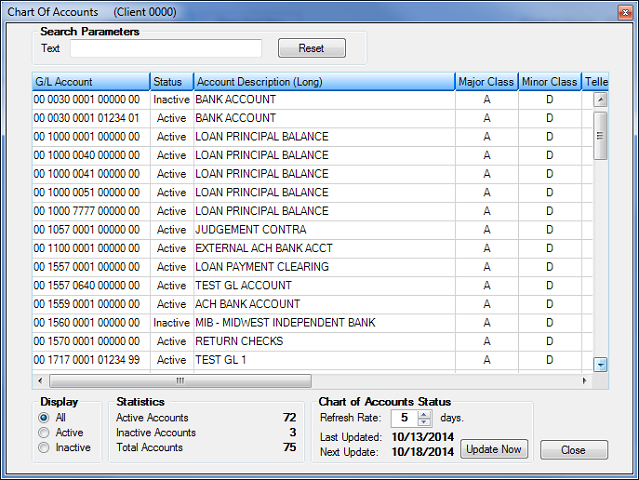
Clicking <Chart of Accounts> on the Transaction Entry screen will bring up the Chart of Accounts screen. This screen lists all General Ledger accounts that have been set up for your institution (and client number). General Ledger accounts are set up on either the Single Account screen (function 53/54) or Multiple Account screen (function 57/58). Note: The <Chart of Accounts> button will be disabled if no configurations have been set up and selected on the Transaction Entry screen.
The following is an example of this screen.
If you want to export the Chart of Accounts to Excel, highlight the entire grid view on the Chart of Accounts screen by pressing <Ctrl> + A on your keyboard. Then right-click and choose "Export Selected Rows to Excel." Specify a filename on the Save As dialog box and then click <Save>, and the Chart of Accounts details will open automatically in Excel.
You can search for the account you need in the following ways:
| 1. | In the Text field in the Search Parameters box, enter either a number or part of the description for the account number you want to use. For example, if you knew the word "MISC" was in the title, you would enter "MISC" in the Text field. All accounts with the word "MISC" in the Account Description (either Long or Short) will be displayed in the list. |
| 2. | Right-click in the list view and select "Find." |
The Find dialog box is displayed (as shown below).

| 1. | Enter the text or number you are searching for in the Find field. |
| 2. | Click <Find>. Any matching account numbers will be displayed in the list view. |
| 3. | Double-click the account number from the list view, and the Find dialog box will close and the account number you selected will be highlighted on the Chart of Accounts screen. |
| 3. | If you know you only want to view active accounts, select the Active radio button in the Display box. Only active accounts will be displayed in the account list, and all inactive accounts will disappear. Note: The system only allows you to post transactions to active G/L accounts. When displaying the status of an account on the Chart of Accounts screen, the system first reads the G/L account record to see if it includes an inactive date. It then compares the inactive date to the effective date of the control group, and any accounts where the inactive date is less than the effective date of the control group will show an Inactive status. |
The Chart of Account screen also displays statistics of the number of General Ledger accounts for your institution (or client number, if your institution has more than one client number set up in the General Ledger system).
Once you find the account you want to use, double-click it and the system will automatically enter the account in the appropriate fields on the Transaction Entry screen. You can continue clicking accounts, and the system will enter the account number on the next line.
The Chart of Accounts screen is updated automatically by the system according to the information entered in the Chart of Accounts Status box. The default refresh rate is 0 days, meaning the Chart of Accounts will be updated each time a user accesses Transaction Entry in CIM GOLD, clicks the <Control Group Entry> button, or refreshes the screen.
The Last Updated field displays the last time the system updated the Chart of Accounts, and the Next Update field displays the next time the system will update information into the Chart of Accounts.
If you know a new account number has been added to the General Ledger system, and you do not want to wait until the next update to load the account number, click <Update Now> and the system will upload all account information from the General Ledger immediately.
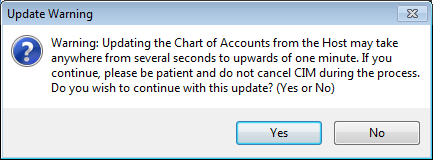
A message (shown below) will be displayed warning you that updating the Chart of Accounts may take some time. Click <Yes> and the system will update the Chart of Accounts.