Filters |
  
|
Navigation: App. F - G/L Transaction Entry in CIM GOLD > Transaction Entry Screen Details >
Filters |
|
The Filters expander bar on the Transaction Entry screen allows you to search for and filter out transaction information you want to review. This expander bar is found on both the Pending Items tab and the Posted Items tab.
Filtering is especially helpful if you've imported a large file of transactions and need to find any errors that need to be corrected before posting.
To expand the Filters, click the arrow  in the top corner above the word Filters. The Filters expander bar will be displayed, as shown below:
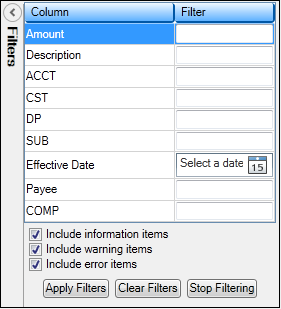
The fields under Column match the configuration of the transaction entry.
If you know what information you are looking for, enter it in the Filter column next to the field in the Column where that information should be found.
For example, if you were looking for the payee name of "Ed's Office Supplies," you could enter "Ed" in the Filter column next to Payee. When you click <Apply Filters>, the system will display any matches to "Ed" in the Payee field on the main Transaction Entry screen.
The system can match partial words and numbers (e.g., "Offi" would find all references of office, official, offices, etc.).
The following paragraphs describe the fields on the Filters expander bar:
Field |
Description |
|---|---|
Column and Filter Entry |
The list of searchable items is dynamic and changes with each configuration. As you change the configuration, so will the searchable fields. Enter the information you want to search for in the Filter column to the right of the field.
Note: When doing a search on Amount, you can search for an amount range by separating the two amounts by a colon (e.g., 12.34:56.78). |
Include information items |
This box is reserved for future use-it currently does not have any functionality. Leave it checked. |
Include warning items |
Checking this box will only show transactions that have a warning status attached to them. |
Include error items |
Checking this box will only show transactions that have an error status attached to them. |
<Apply Filters> |
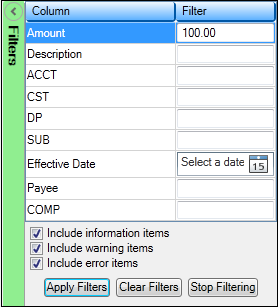
Clicking <Apply Filters> will apply the selected filters you have entered. Any matching information will be displayed in the list view on the Transaction Entry screen. Note: When filters are applied the Filters expander bar color will change to indicate that filters are in use, as shown below:
|
<Clear Filters> |
Clicking <Clear Filters> clears all the filter options that you have entered, but it does not reset the Transaction Entry screen. |
<Stop Filtering> |
Clicking <Stop Filtering> resets the Transaction Entry screen to its original state, but it does not clear out any information you entered in the Filters expander bar. |