Posting G/L Transactions |
  
|
Navigation: App. F - G/L Transaction Entry in CIM GOLD > Transaction Entry Screen Details >
Posting G/L Transactions |
|
The following information describes the general steps you will take to post transactions to the General Ledger using the Transaction Entry screen in CIM GOLD.
To post G/L transactions:
1.Access the Transaction Entry screen in CIM GOLD (Financial Applications > General Ledger > Transaction Entry).
The Control Group Entry dialog box is displayed.
2.Enter the information in the fields on the Control Group Entry dialog box.
3.Click <OK>.
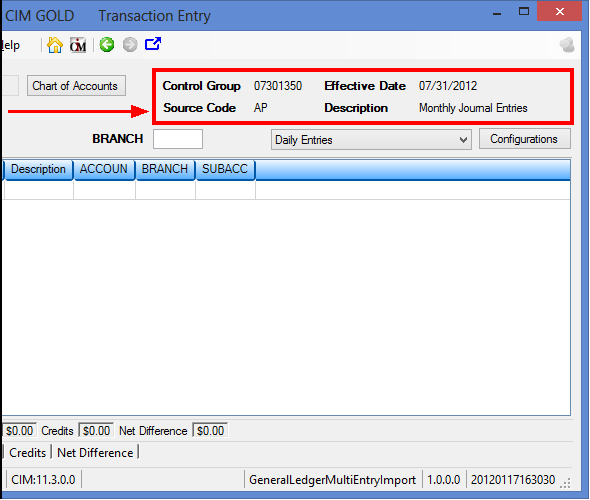
The system will take you to the Transaction Entry screen, and the information you entered in the Control Group Entry will be displayed in the top group box, as shown below:
4.Select the configuration you want to use for this batch of transactions from the Configurations drop-down list. If you want to create a new configuration, click <Configurations>. For more information on setting up configurations, see Configurations.
5.If you are importing a file, click <Import>.
The Transaction Import dialog box will be displayed. Use this dialog to enter the information of the file you are importing. See Importing Transactions for more information.
-OR-
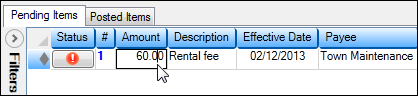
If you are manually entering transaction information, you would type the information in the designated fields on the Transaction Entry screen, as shown below. Any error messages will be displayed under the Status column. See Manually Entering Transactions for more information.
| 6. | Fix or correct any errors or warnings that may be displayed. |
C TIP: See Common Errors for a list of common errors and how to correct them.
| 7. | Click <Post Batch>. |
A warning message will display requesting confirmation to proceed. If you click <Yes>, the transactions will be batched up in groups of 500 (if applicable) to be sent and processed on the host. Once completed, the transactions will be moved from the Pending Items tab to the Posted Items tab. Failed transactions (if any) will remain on the Pending Items tab.
NOTE
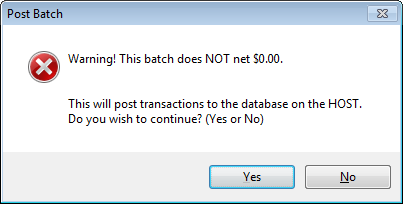
A message is included with the warning message if the batch does not have a net total of 0.00, as shown below:
You can still post the batch. Accounting best practices generally dictate that General Ledger transaction batches net 0.00, but there may be exceptions.
You can also include the account fields for debit and credit right next to each other on the Transaction Entry screen, and anytime you enter an amount, the amount is automatically duplicated into credit and debit accounts. For more information on these fields, see Customizing the Transaction Entry Screen. |
Once transactions have been posted to the General Ledger from CIM GOLD, you can view a report of the transactions by running the Control Group Entry Detail Report on the Transaction Listing screen (function 20, then report 1) in GOLDVision.
If you need to make any further changes to the transactions that were posted, access the Transaction Display or Correction screen (function 12) in the General Ledger system in GOLDVision and make changes there.
To save a record of the posted transactions or to print a copy of the posted transactions, access the Posted Items tab, right-click on the list view, and select the appropriate menu items you want to use. For more information, seePosted Items tab.